Local Sync Client
Overview
Sync Client is a desktop application for keeping SEW OrchestrationSuite projects available on a local computer or network share. It runs with a background service and provides a window for selecting projects, synchronizing versions, checking projects out for editing, and checking changes back in.
The application workflow is the same on Windows and Linux. Platform-specific instructions are provided for installation and removal; the remaining screenshots show the shared interface.
Download
Download the latest SEW package for your operating system:
Install Sync Client
Windows
-
Locate
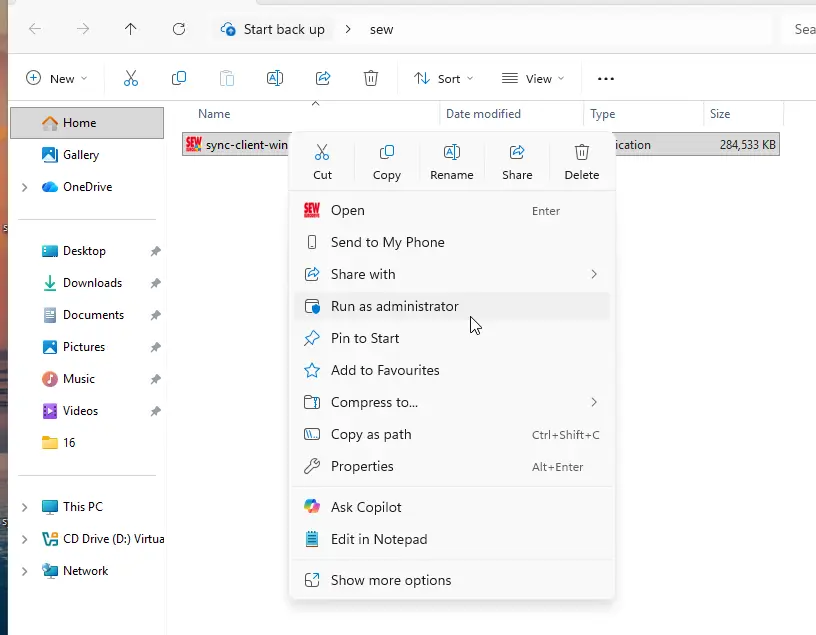
sync-client-windows-setup.exein Downloads, right-click it, and select Run as administrator. Running the installation as administrator is mandatory.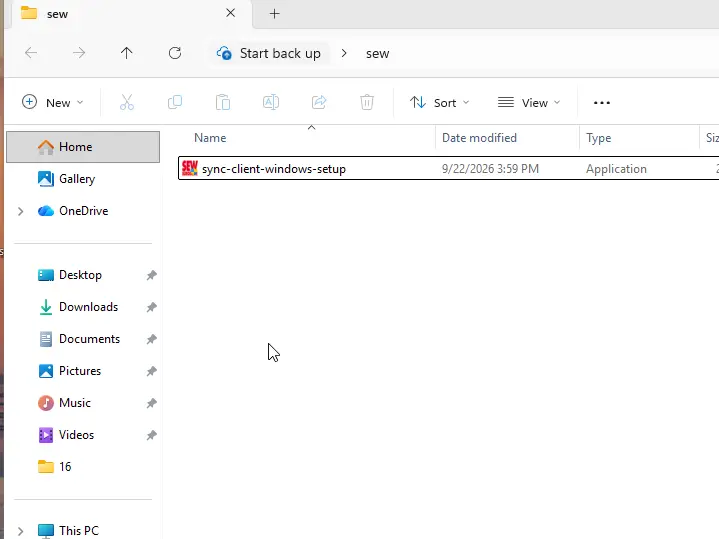
-
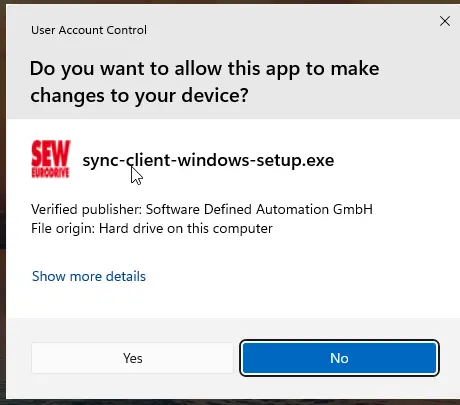
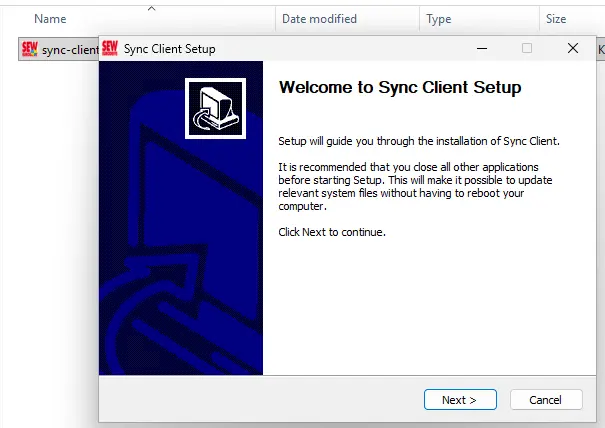
Approve the Windows User Account Control prompt and continue from the welcome screen.
-
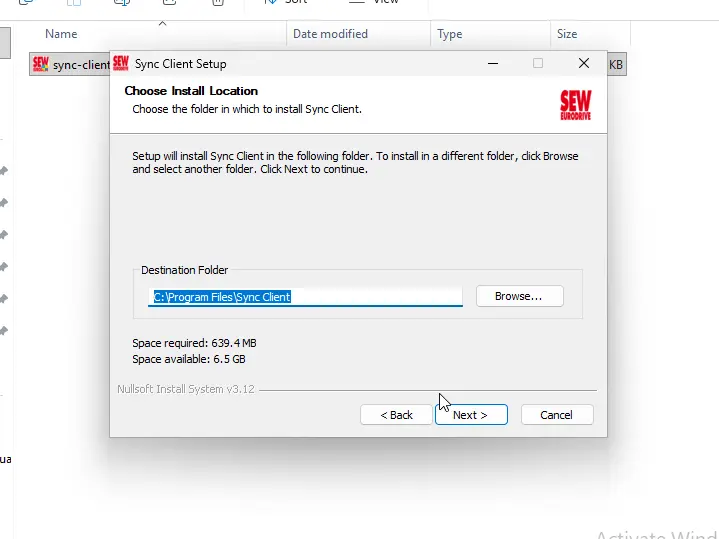
Choose the installation folder. The default location is recommended.
-
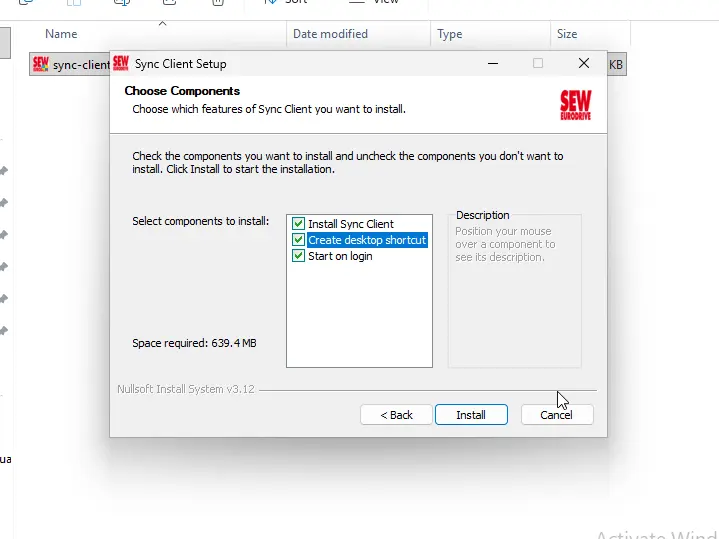
Keep Install Sync Client, Create desktop shortcut, and Start on login selected for the standard installation.
-
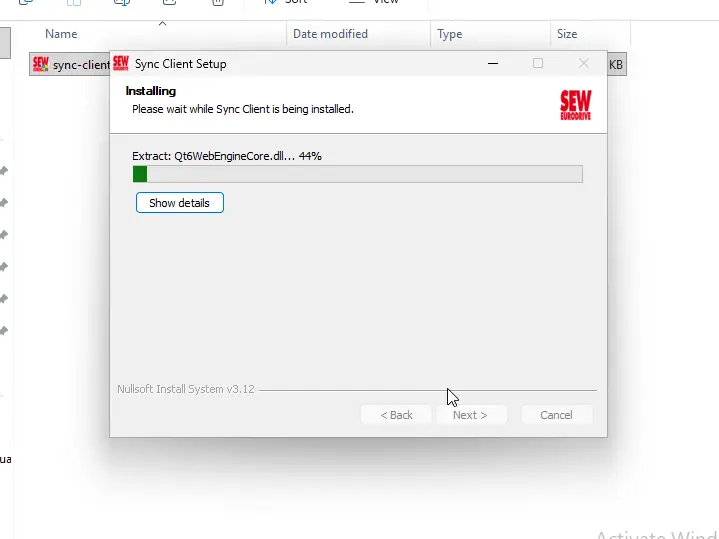
Wait for setup to install the application and background service.
-
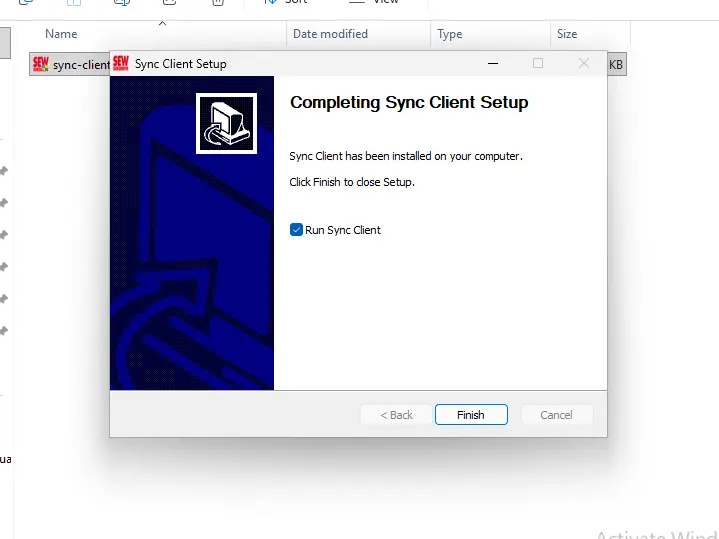
Keep Run Sync Client selected and choose Finish.
Linux
-
Download
sync-client-linux.tar.bz2and extract it:tar -xjvf sync-client-linux.tar.bz2 -
Open a terminal in the extracted directory:
cd sync-client-linux -
Run the installer with administrator privileges:
sudo ./install.sh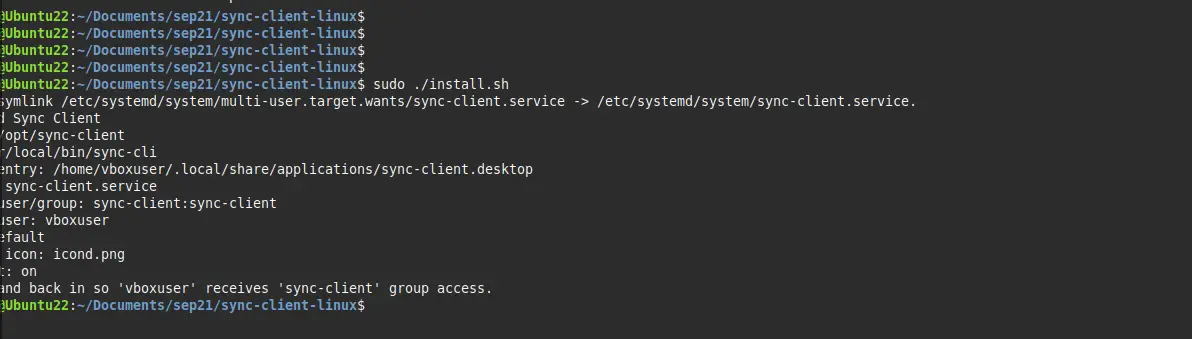
-
Confirm that the terminal reports Installed Sync Client and lists the installed bundle, CLI, desktop entry, service, and service user. Sync Client opens automatically when installation finishes.
-
Log out of the Linux desktop and log in again before using Sync Client. The installer adds your desktop user to the
sync-clientgroup, and the new group membership becomes active in the new login session. -
After logging in again, Sync Client can be opened from the application launcher or from its system tray icon if it is not already running.
First-time configuration
The first-time setup moves automatically through:
Login → Storage → Filters / Policy
The screenshots below show the Windows build, but the same settings and controls are available on Linux.
Sign in
Enter your SEW OrchestrationSuite email address and password, confirm the API URL, and select Connect.
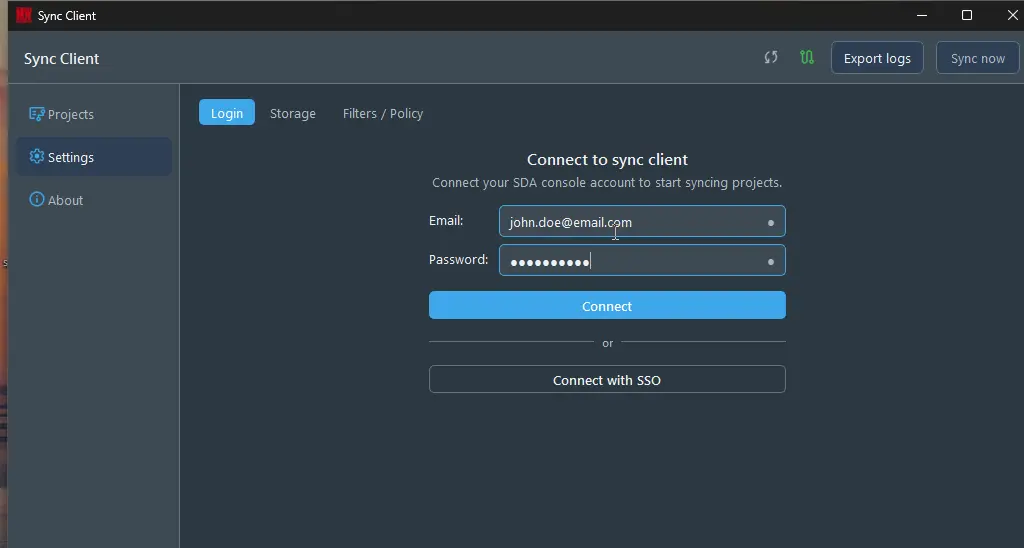
The icons beside the fields show whether the individual values were verified. After a successful connection, Sync Client automatically opens the Storage step.
Multi-factor authentication
If multi-factor authentication is enabled for the account, enter the six-digit token from the authenticator application and select Confirm.
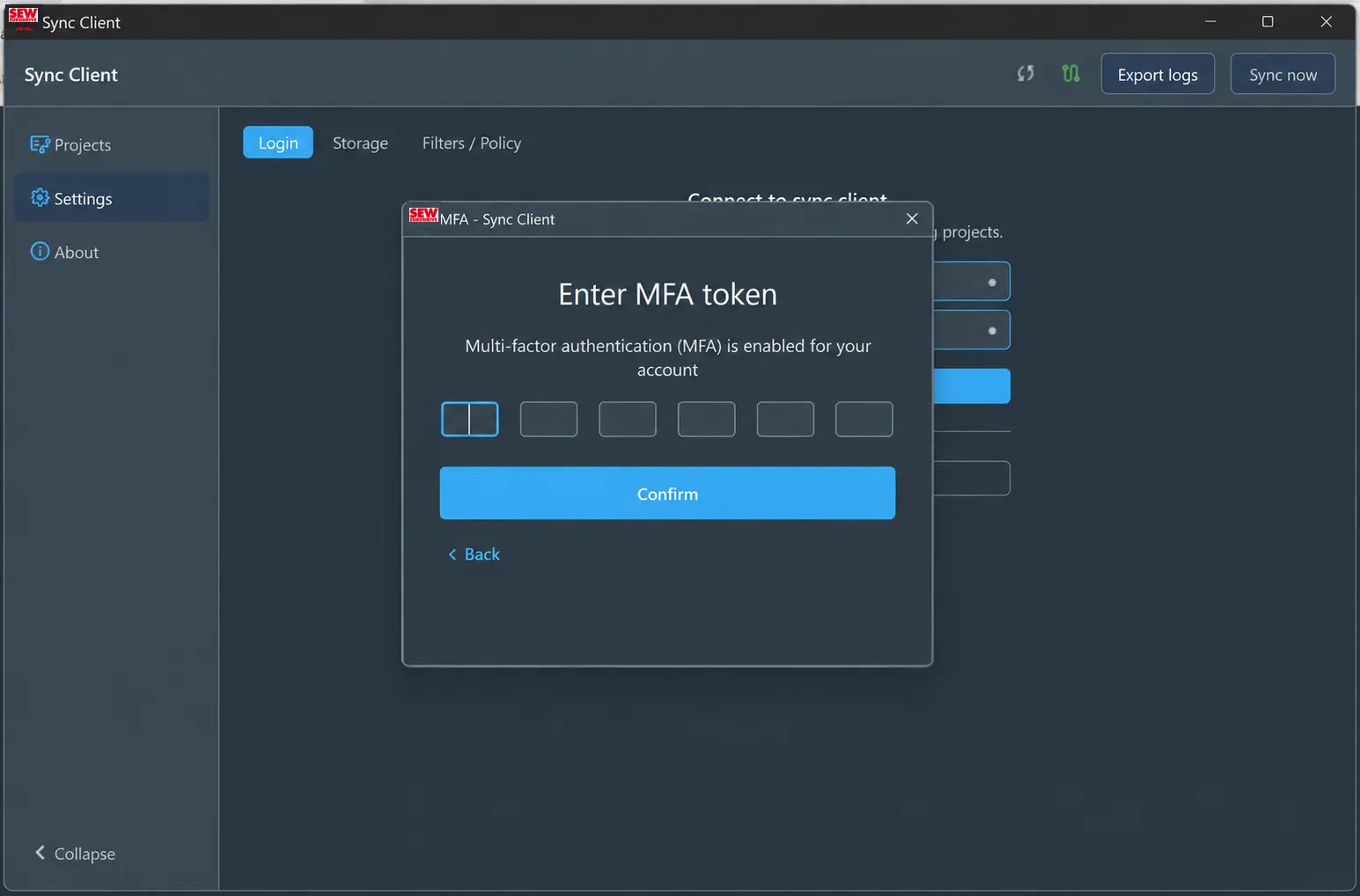
Choose storage
Sync Client can store synchronized projects in a local folder or on an SMB network share.
Local filesystem
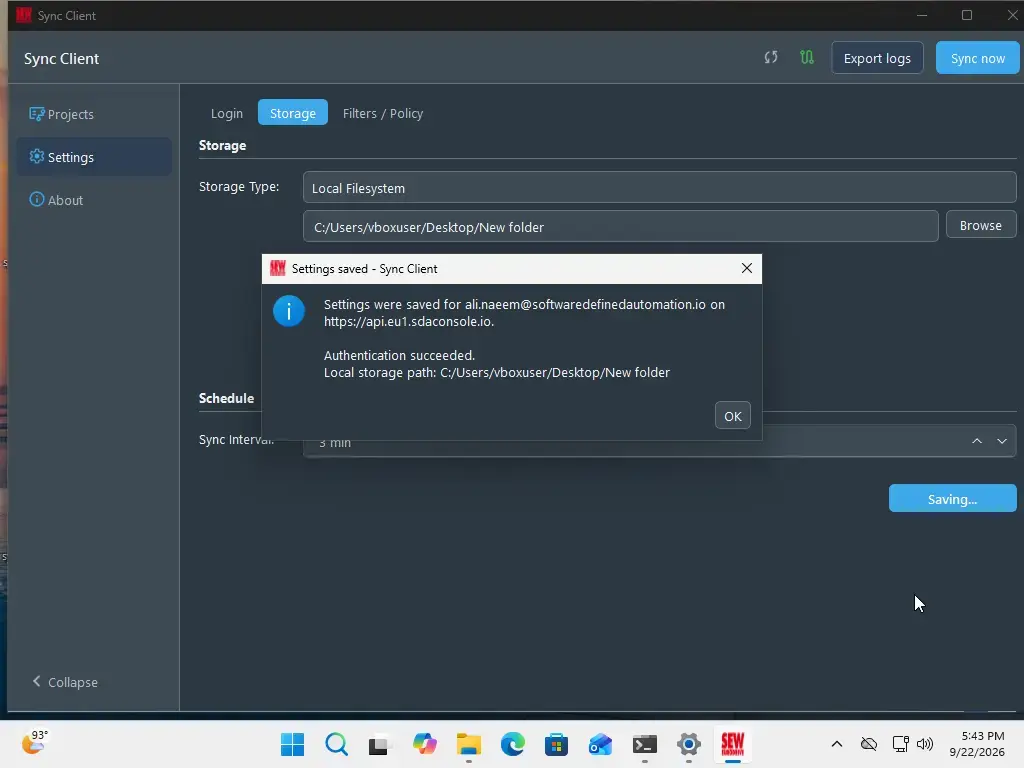
Select Local Filesystem, choose Browse, select the project folder, set the synchronization interval, and select Save.
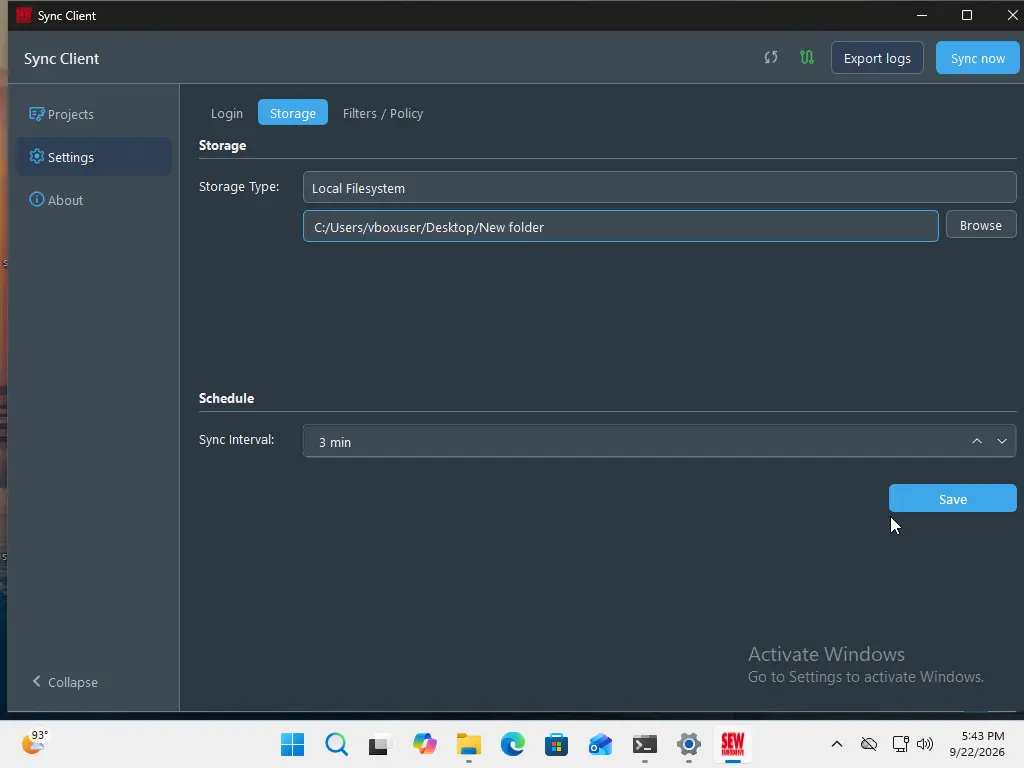
After the settings are verified and saved, Sync Client automatically continues to Filters / Policy.
SMB network storage
Select Network Location and provide:
- UNC Path: the network share and optional subfolder, such as
\\fileserver\engineering - Domain: the Windows domain or workgroup, when required
- SMB Username and SMB Password: an account with read and write access
- Sync Interval: how frequently Sync Client checks for project updates
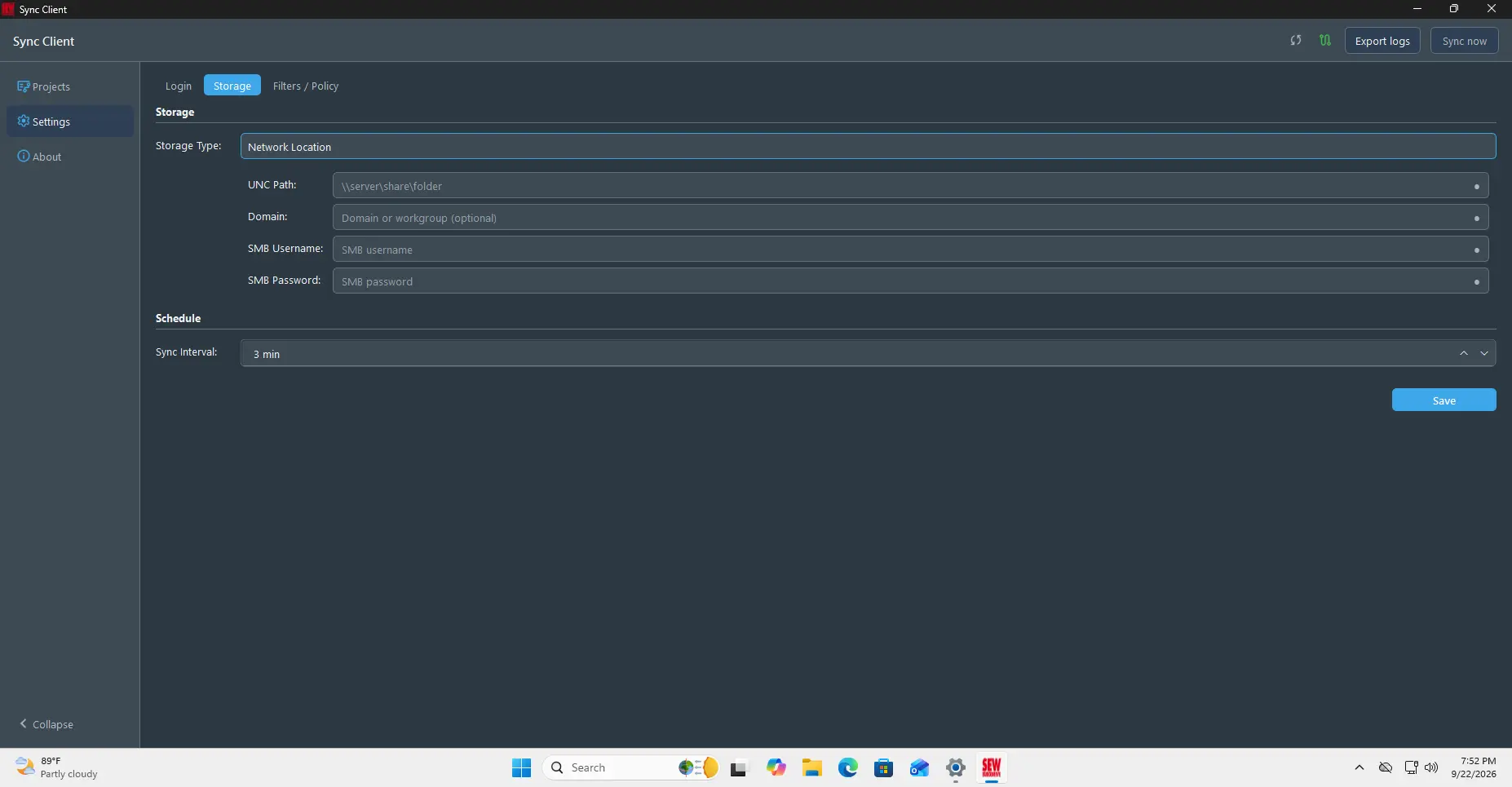
Select Save to verify and apply the settings. If verification fails, confirm that the UNC path is reachable and that the account has read and write access.
Select projects and versions
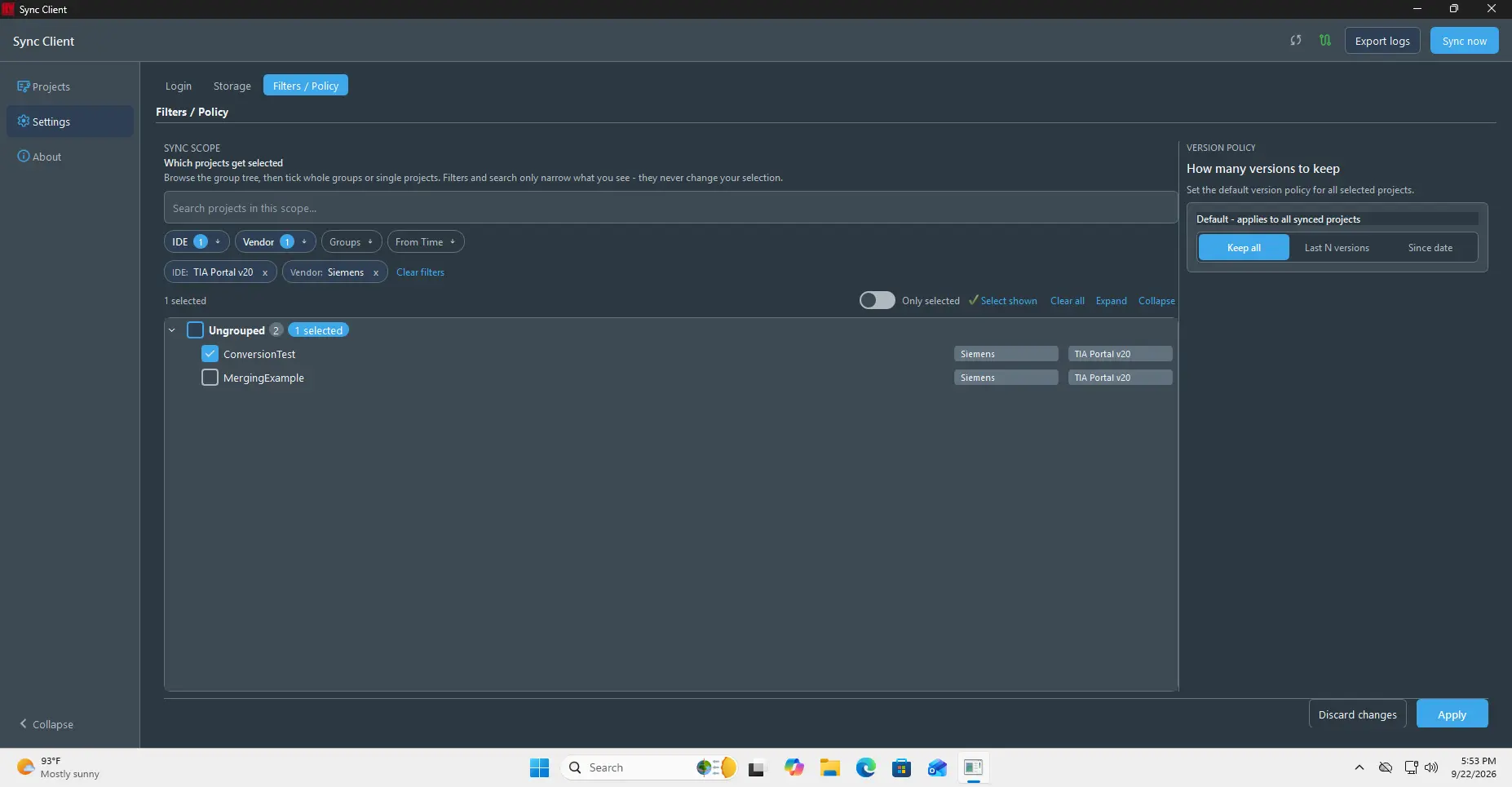
Use Filters / Policy to choose which projects should be synchronized and how many versions should remain available locally.
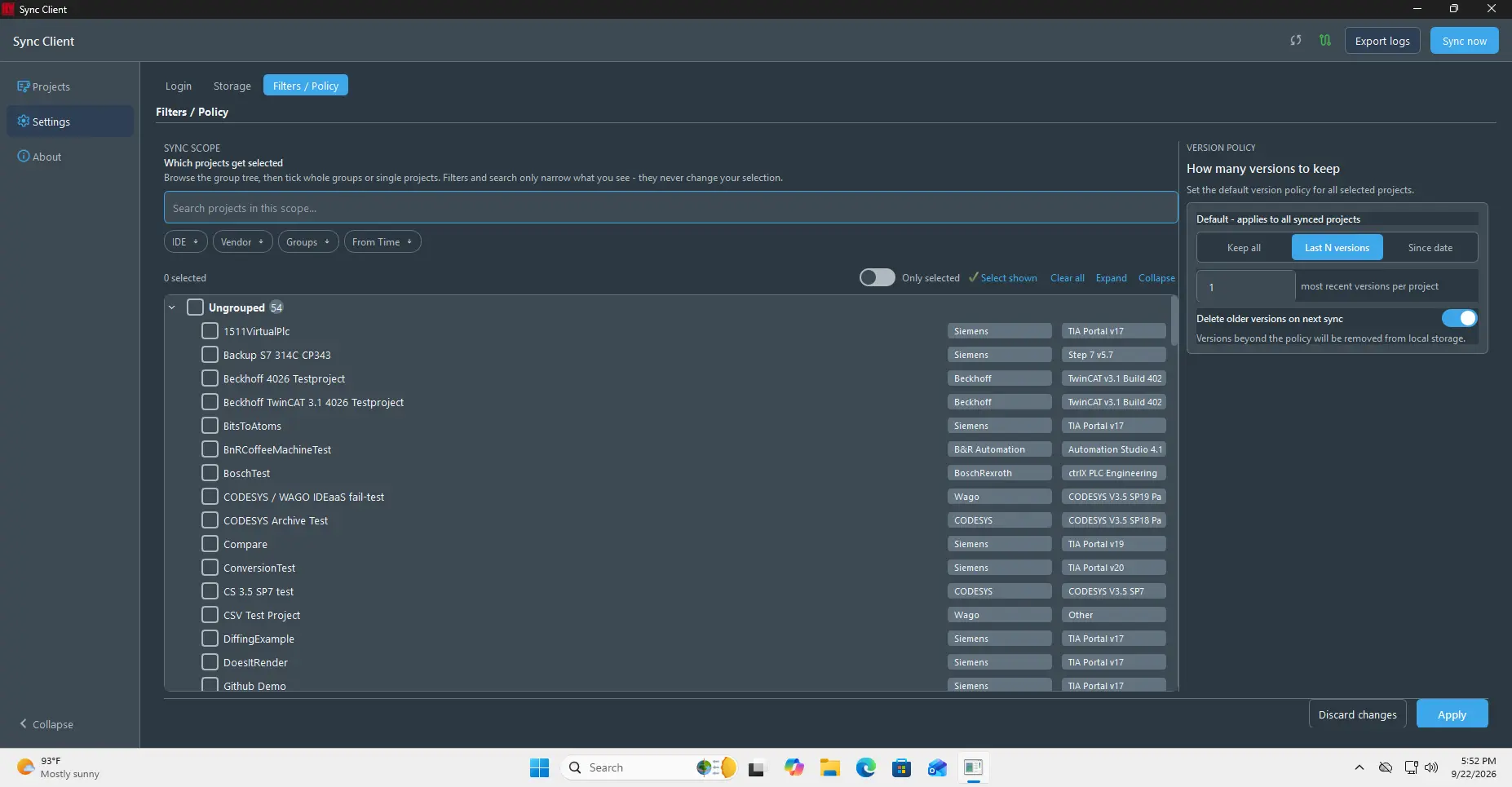
- Use IDE, Vendor, Groups, and From Time to narrow the project list.
- Search the hierarchical project tree by name.
- Expand groups and select complete groups or individual projects.
- Remove an active filter by selecting its pill.
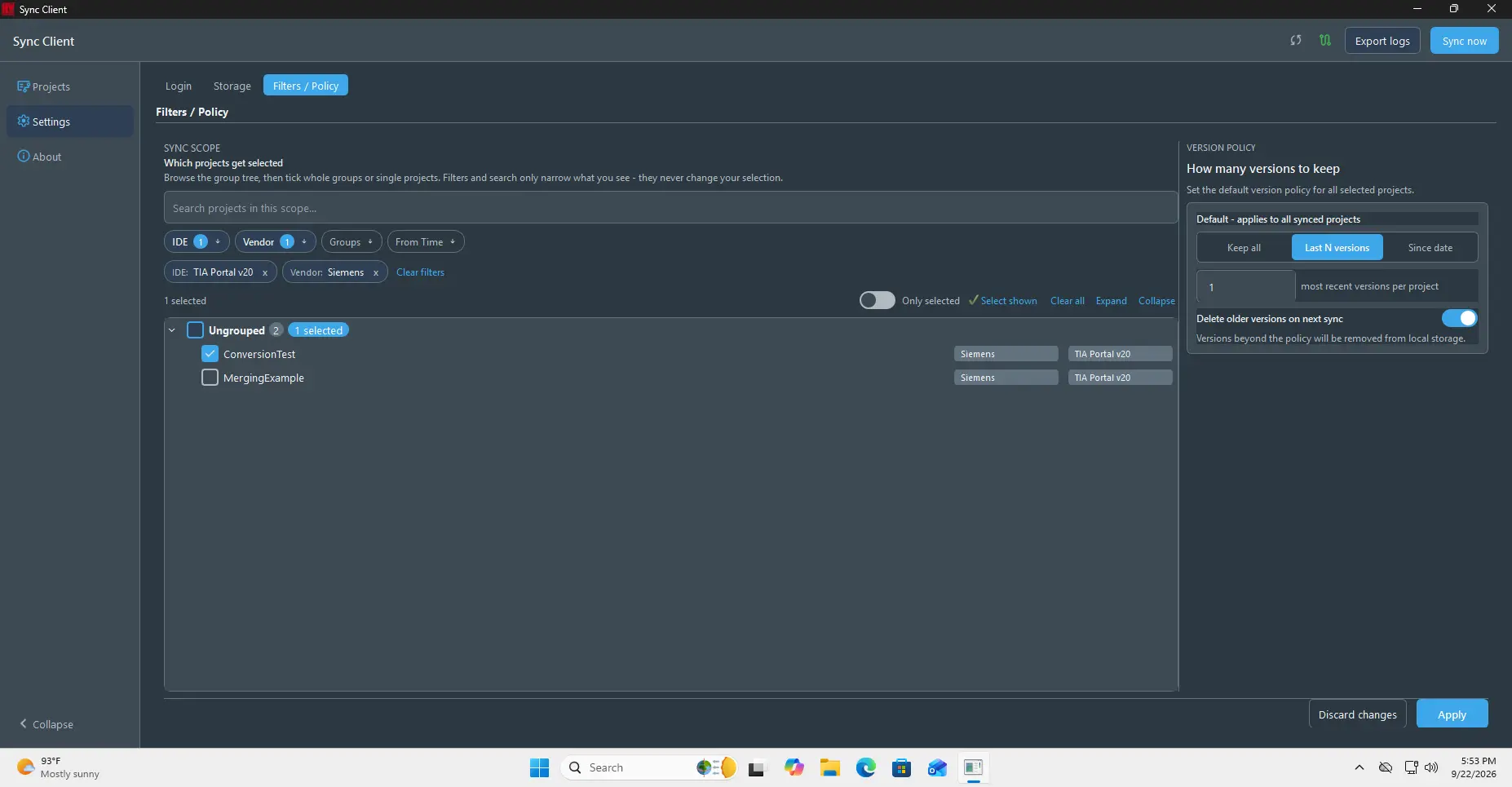
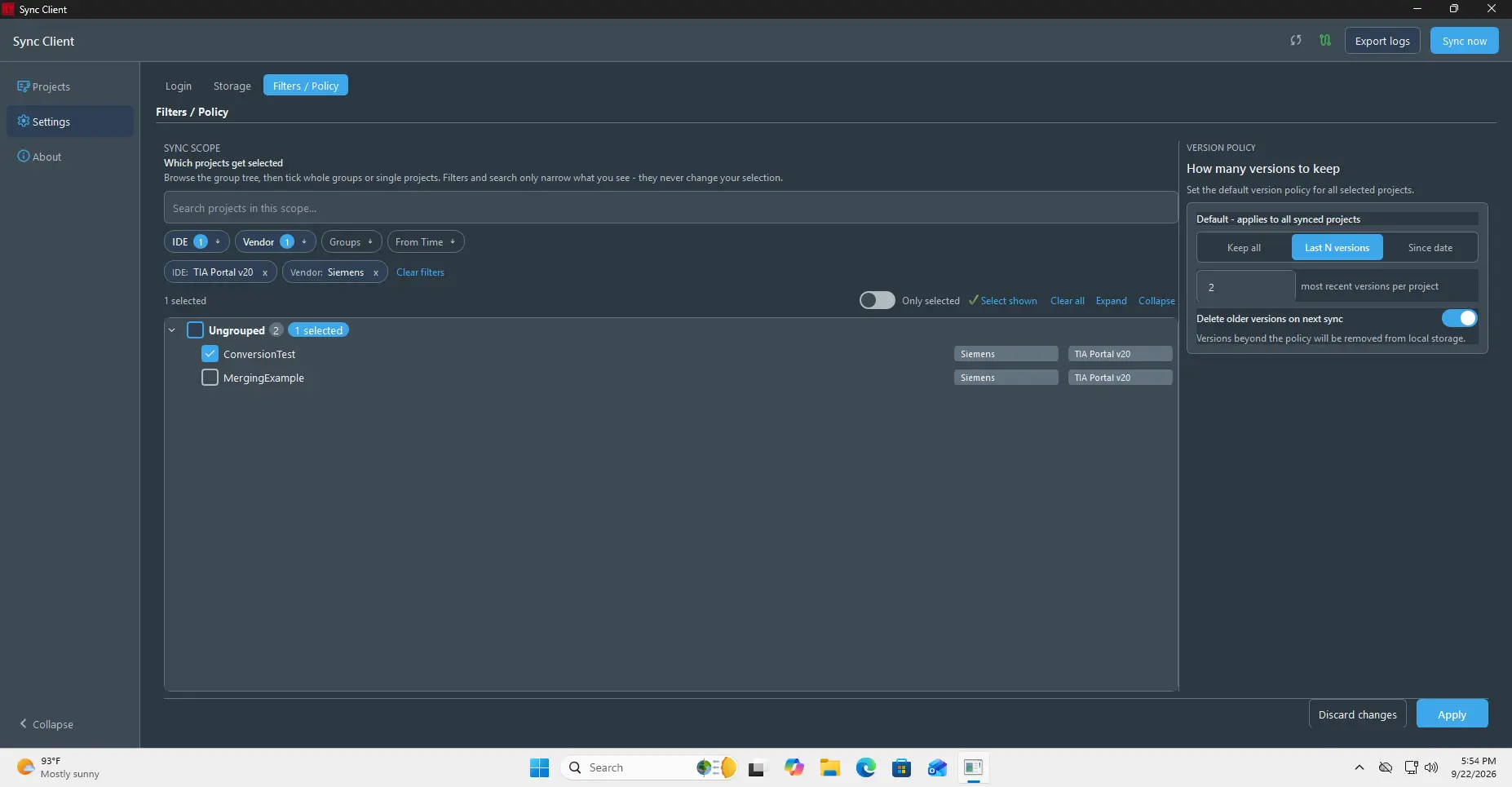
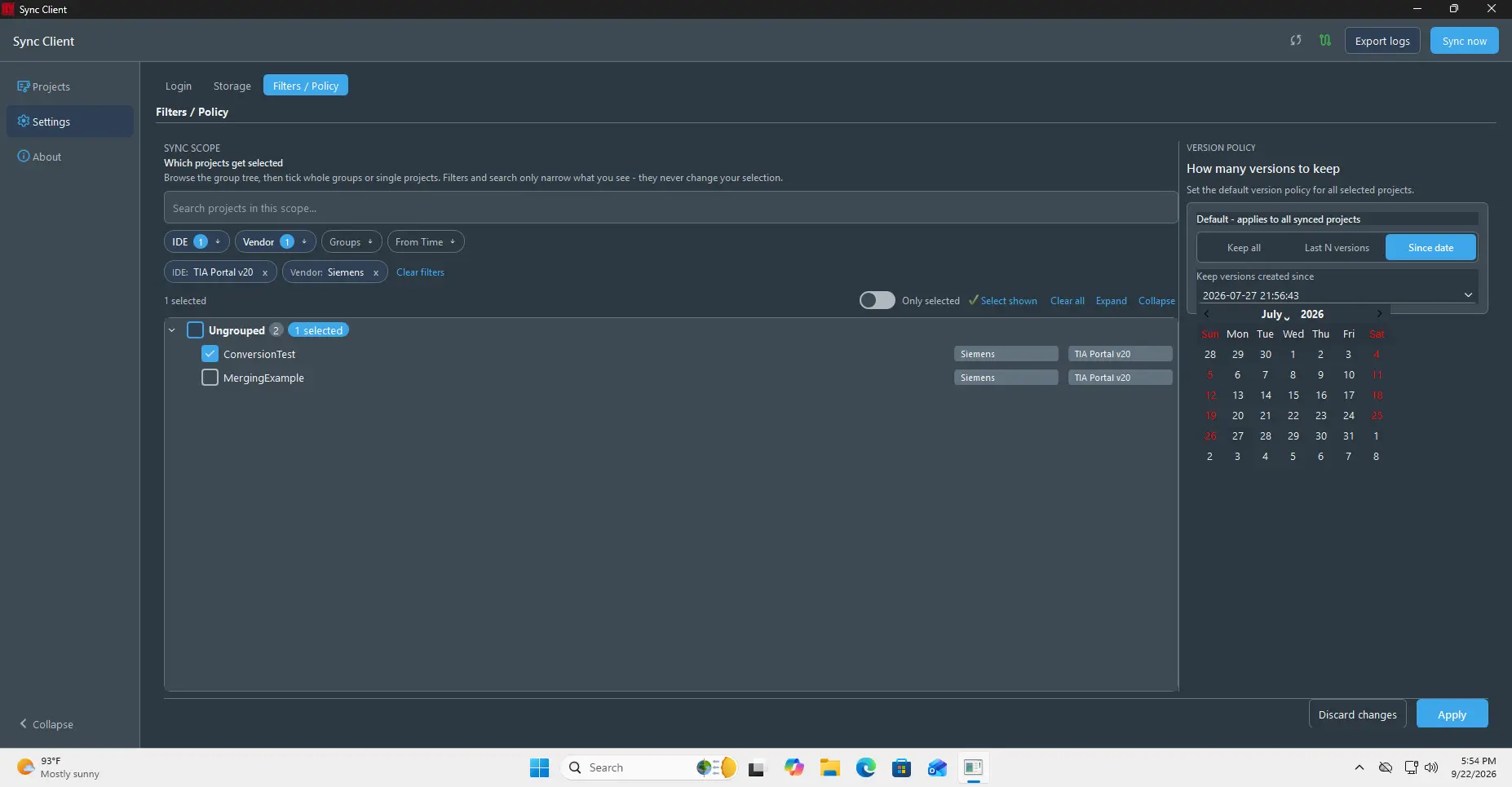
Under Version policy, choose Keep all, Last N Versions, or Since date.
Use Delete older versions on next sync when versions outside the selected policy should be removed from local storage.
For a time-based policy, choose Since date and select the required date and time.
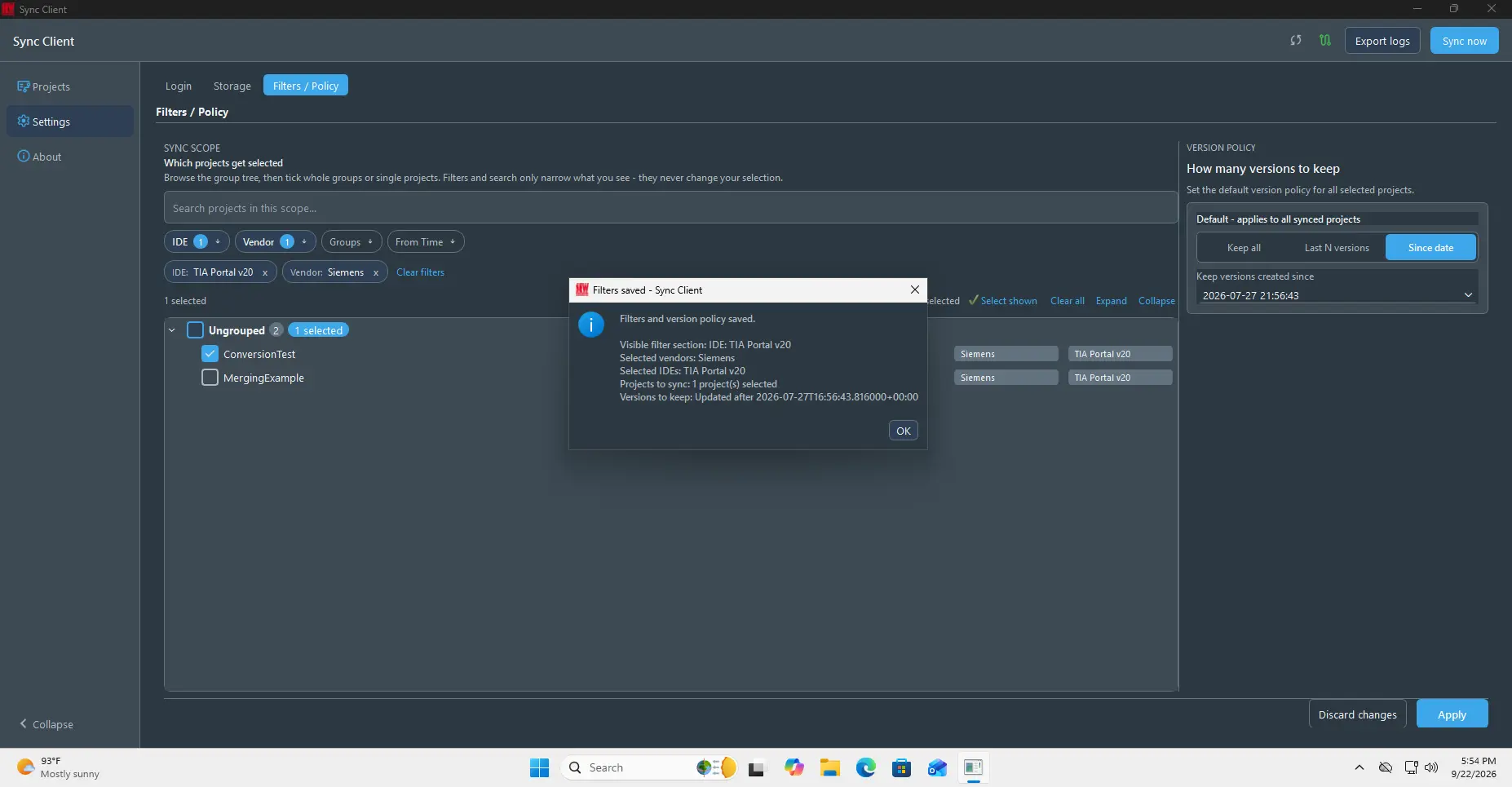
Select Apply and review the confirmation, which summarizes the active filters, selected projects, retention rule, and whether older local versions will be deleted.
Work with projects
Find and synchronize a project
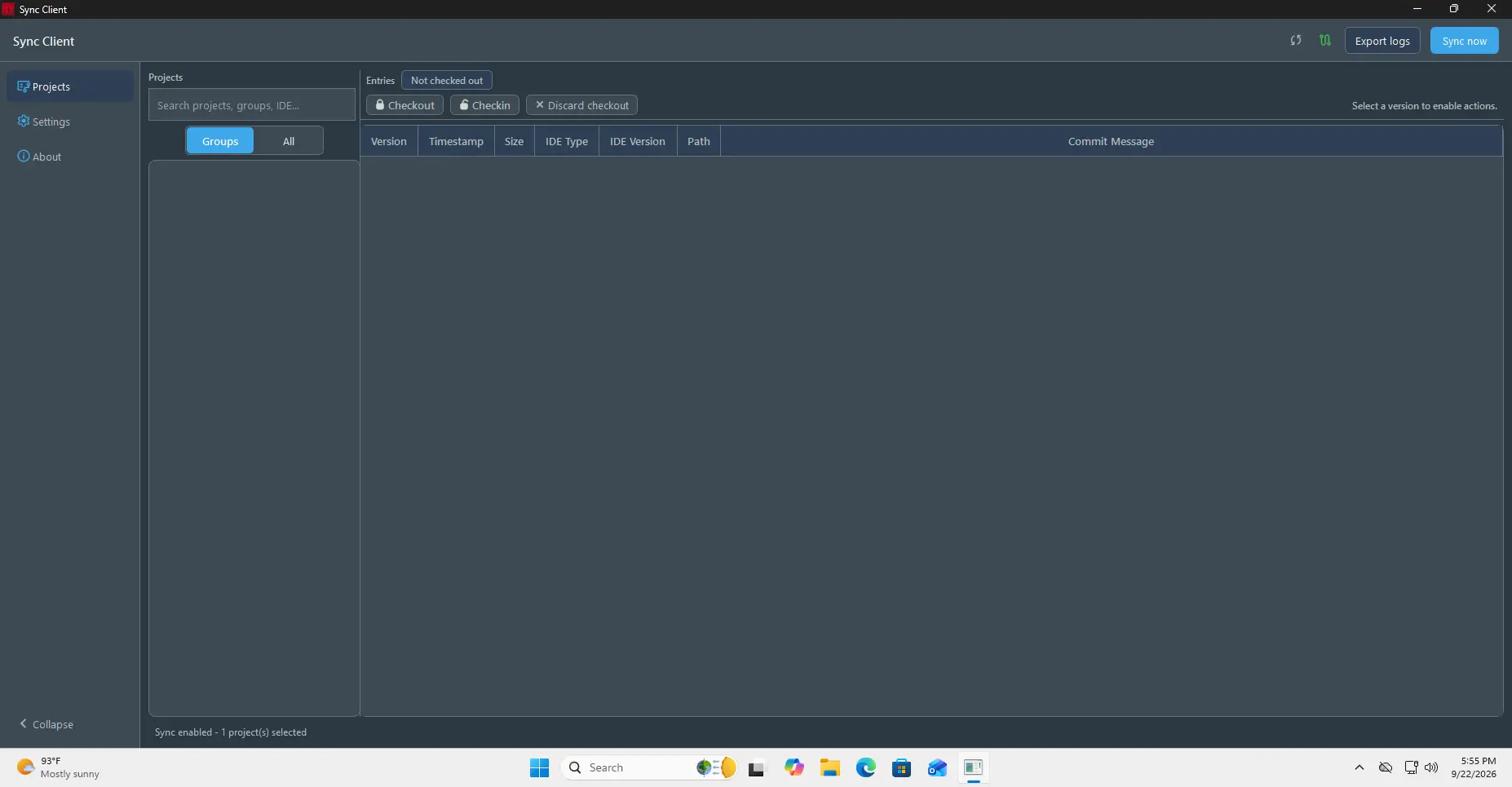
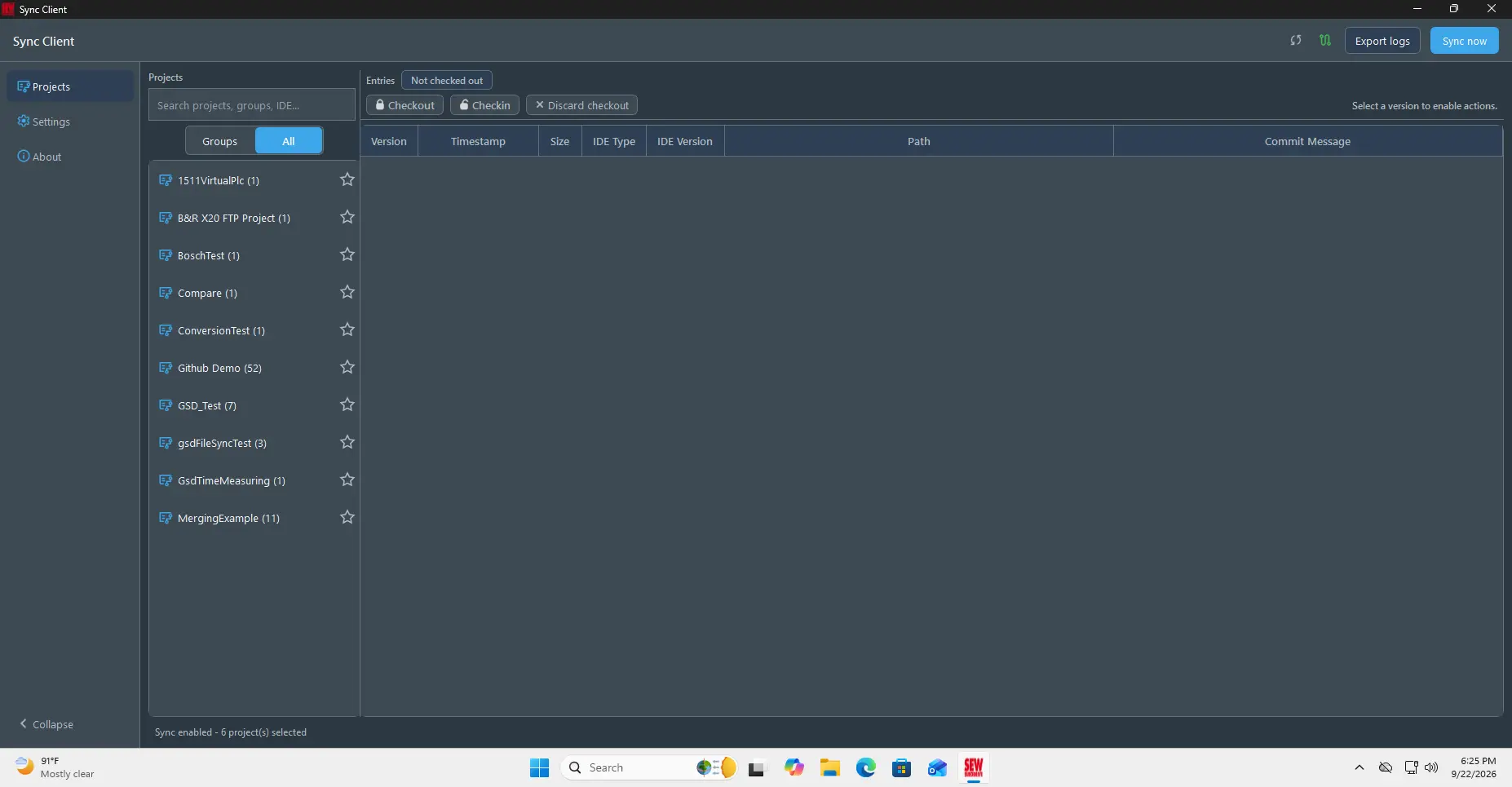
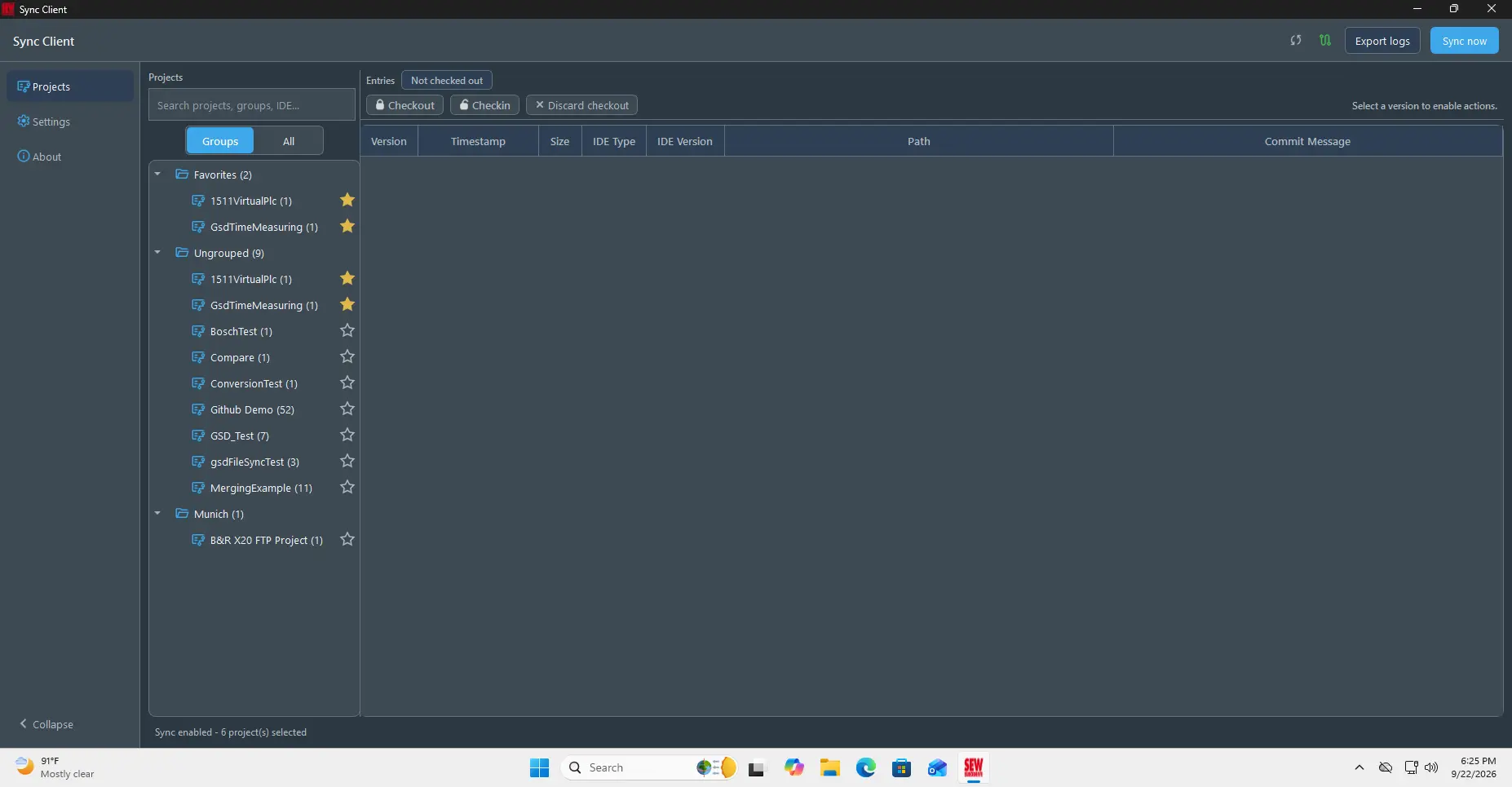
Open Projects and use search, All, or Groups to find a project. Selecting a project displays its available versions, timestamps, IDE information, local paths, commit messages, and synchronization state.
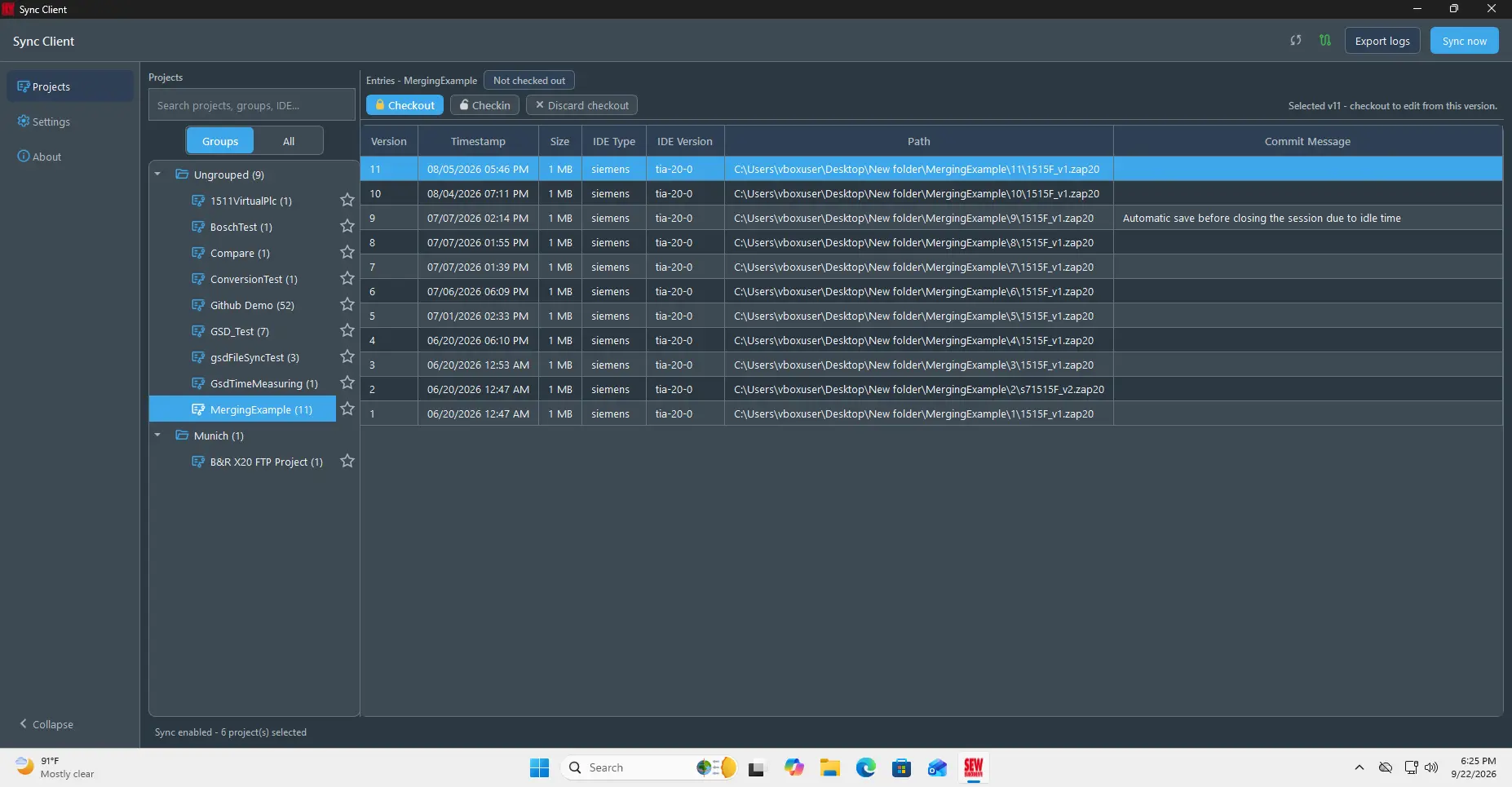
The grouped project tree helps navigate projects by their assigned groups.
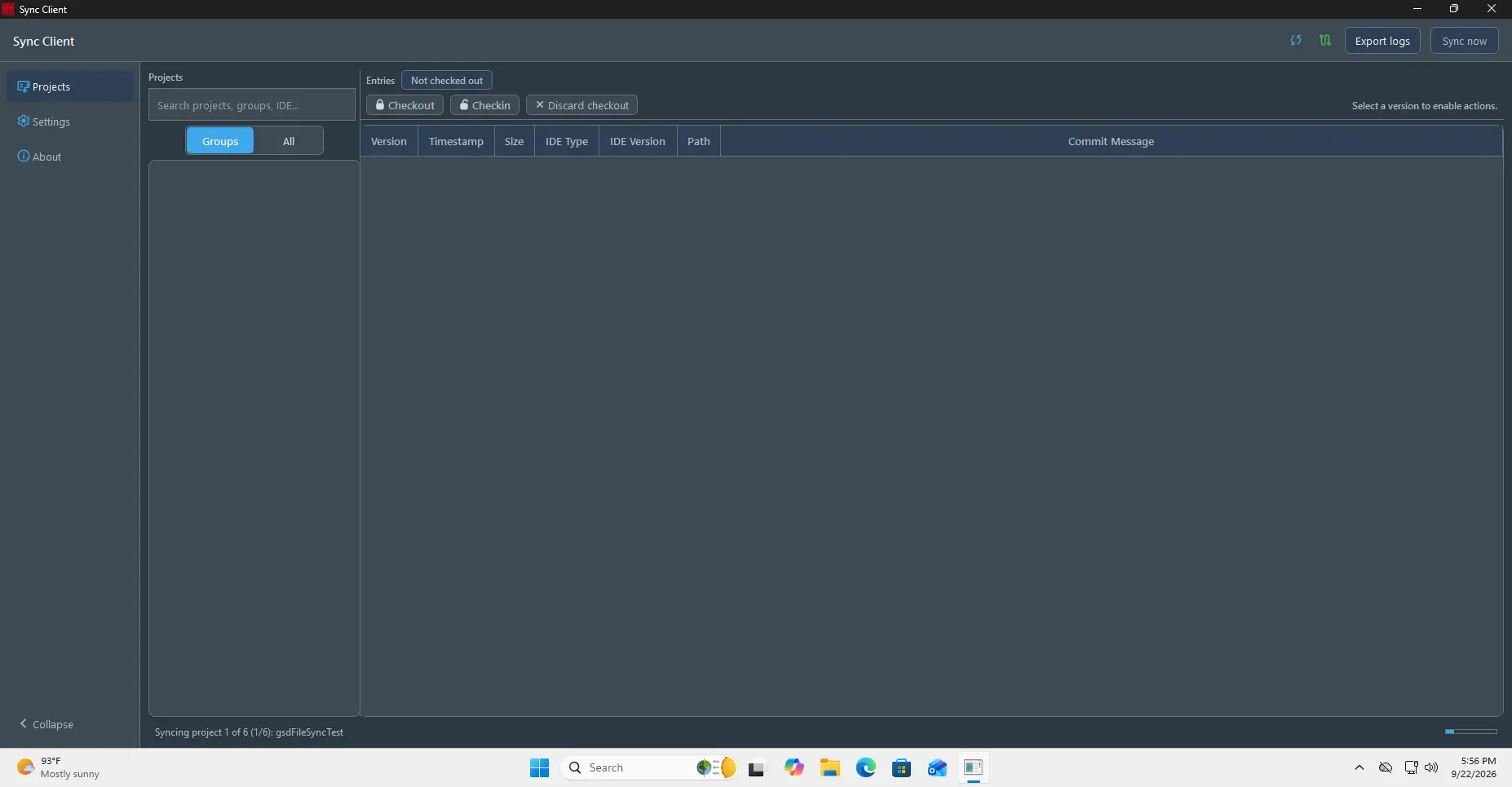
Use Sync now to request an immediate synchronization instead of waiting for the configured interval.
Check out and open a project
Select a project and version to display the available project actions.
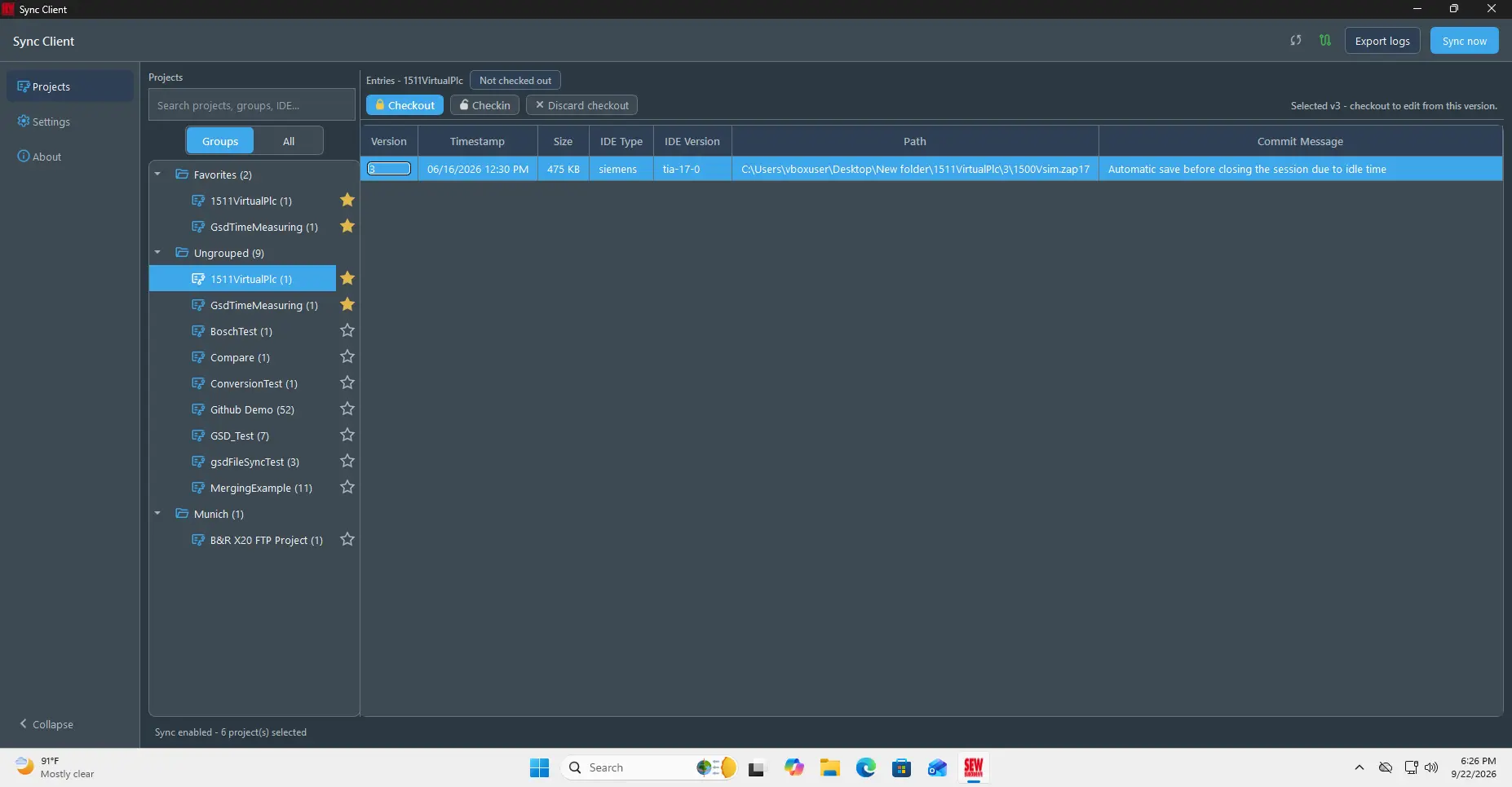
Choose Checkout. You can add an optional lock message before confirming.
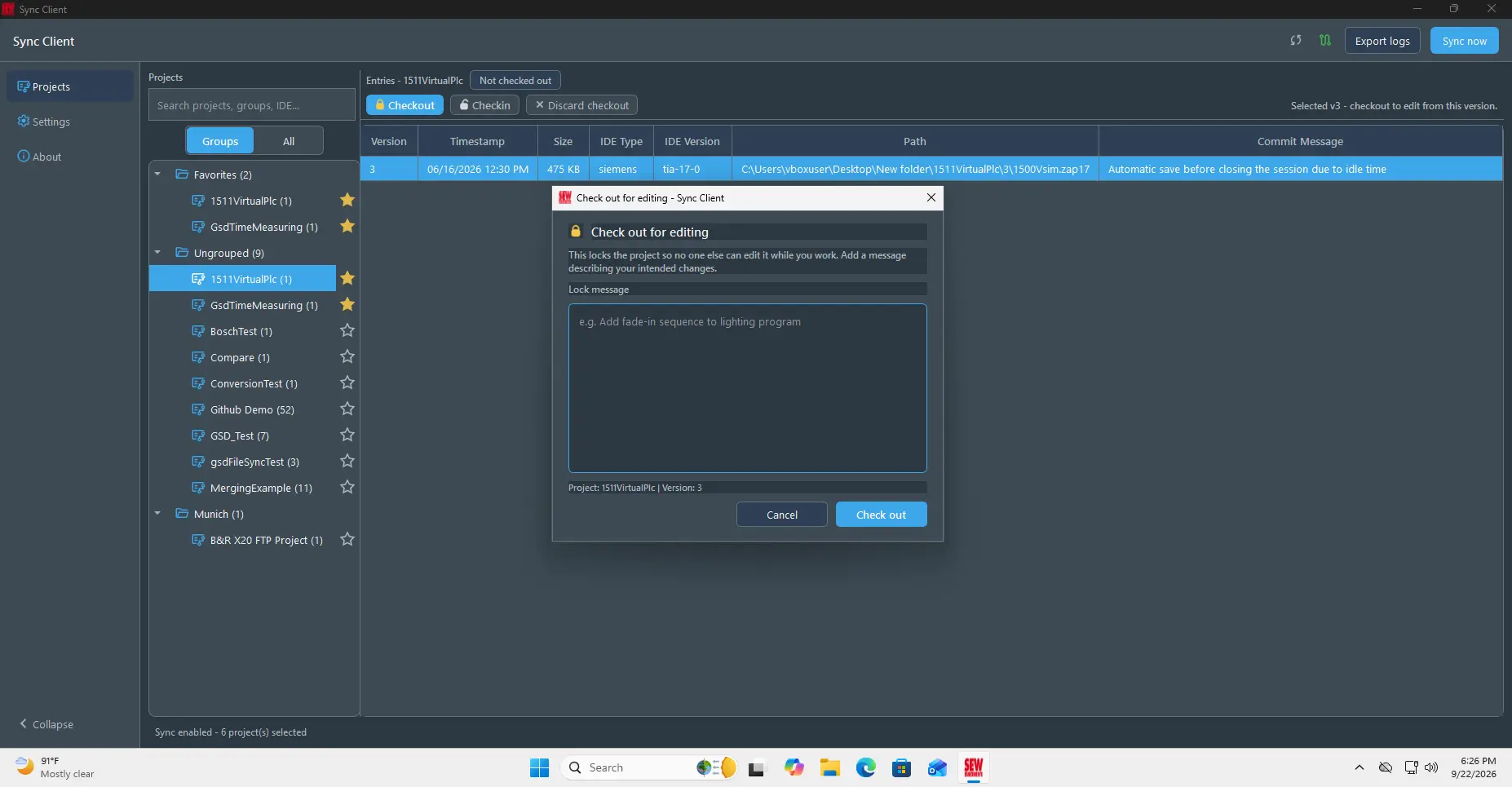
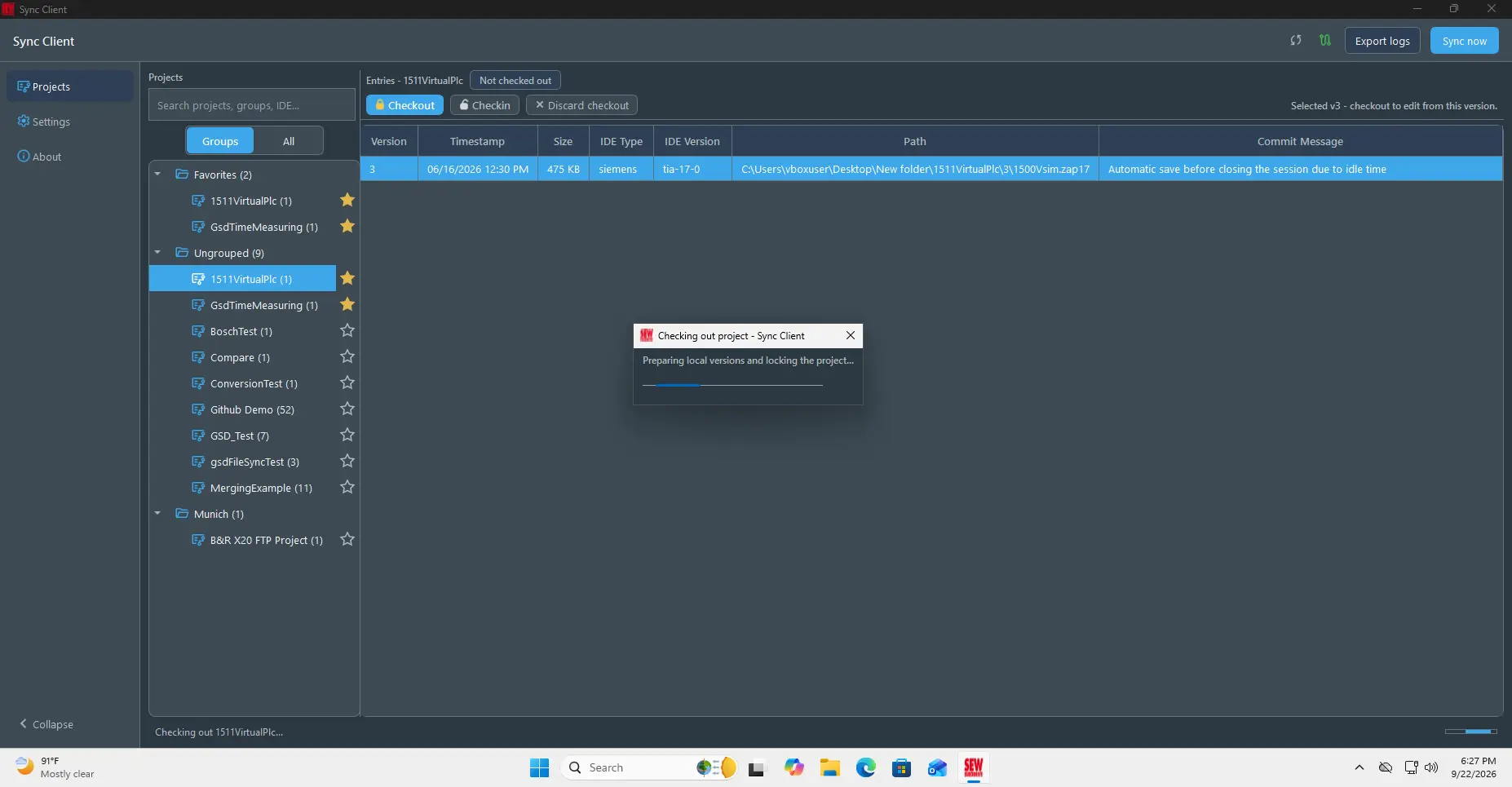
Sync Client downloads the required files and locks the project for your work.
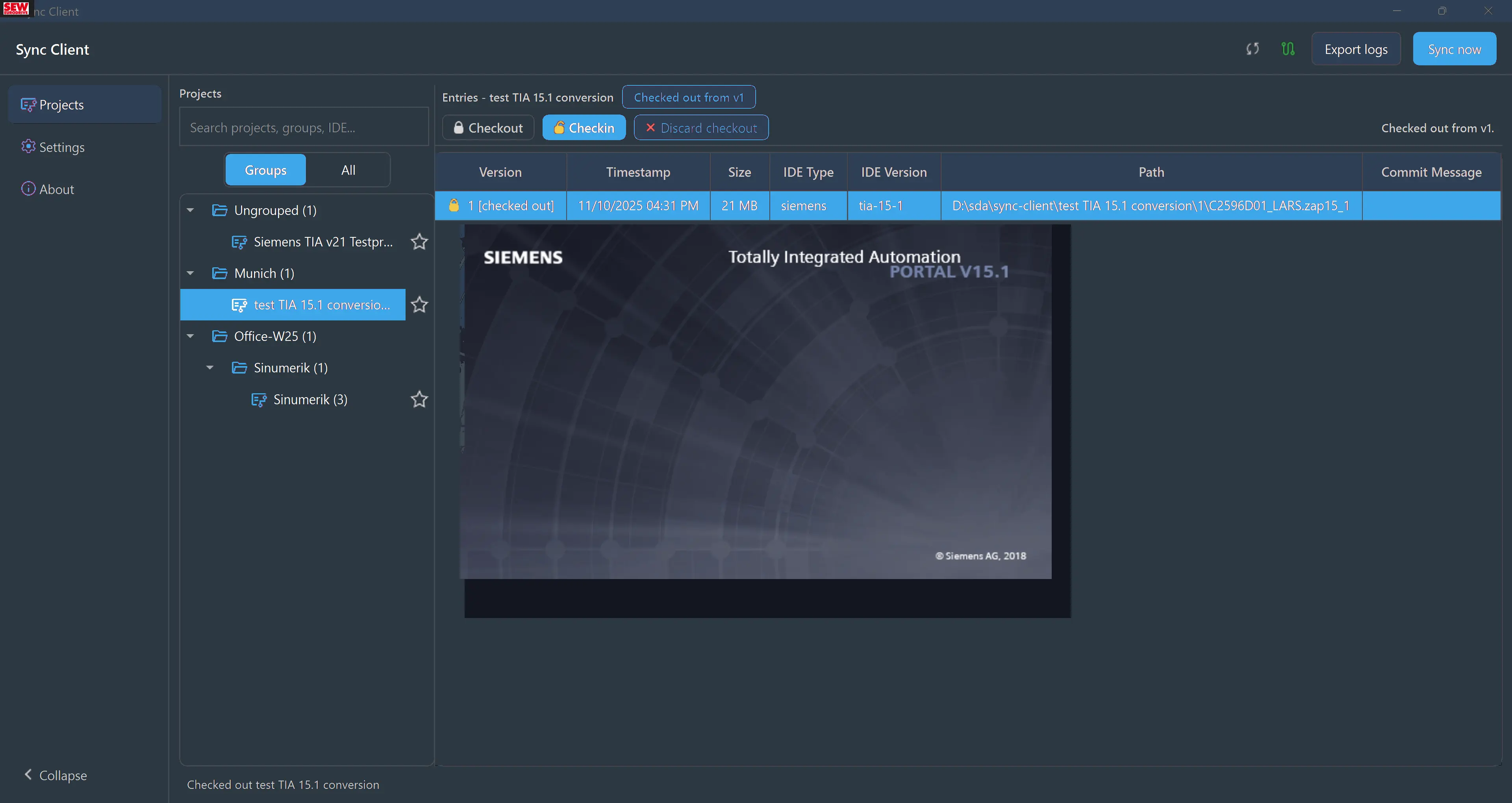
Once checkout completes, the project view identifies the checked-out version and enables Open project, Checkin, and Discard checkout.
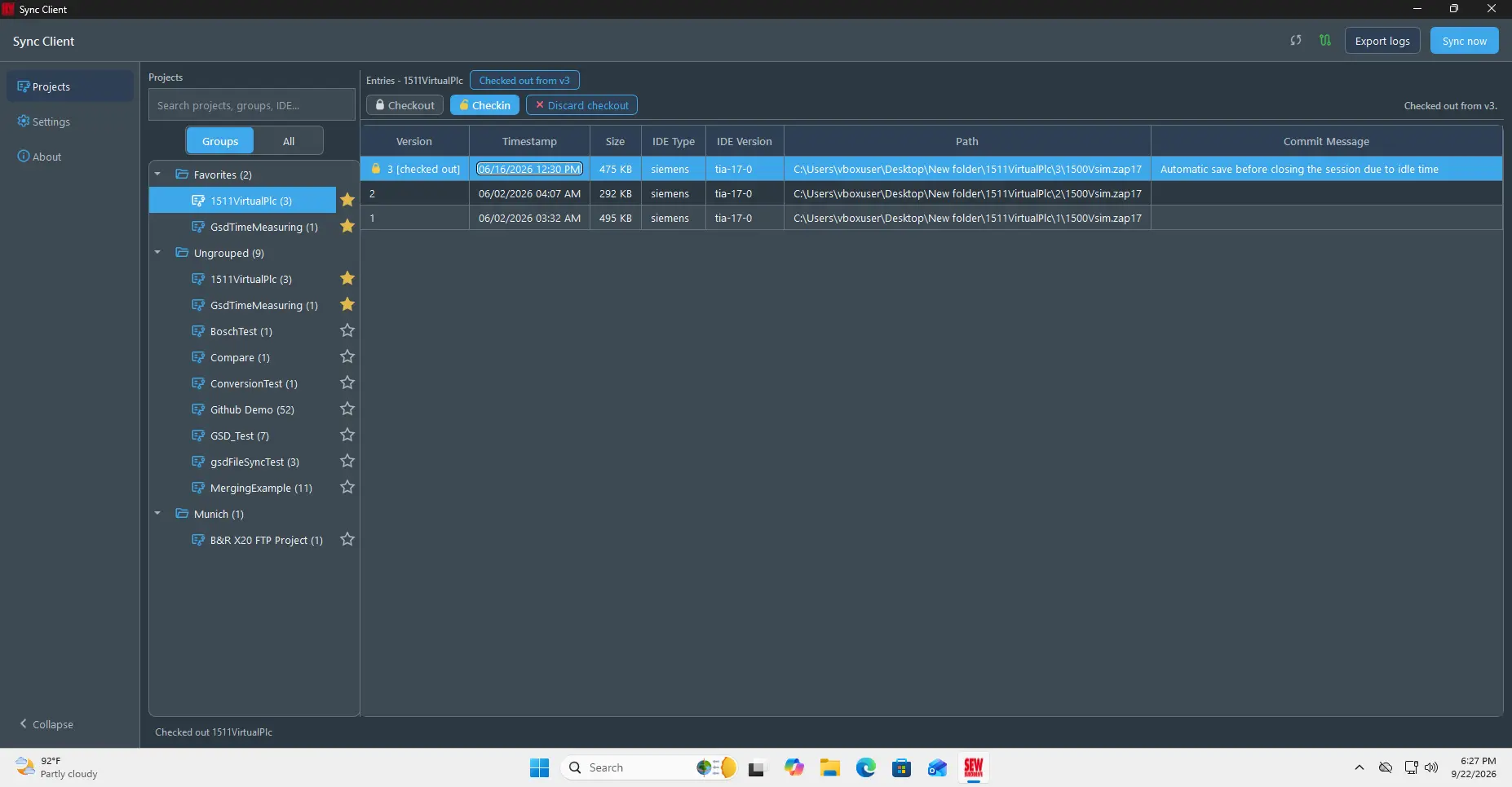
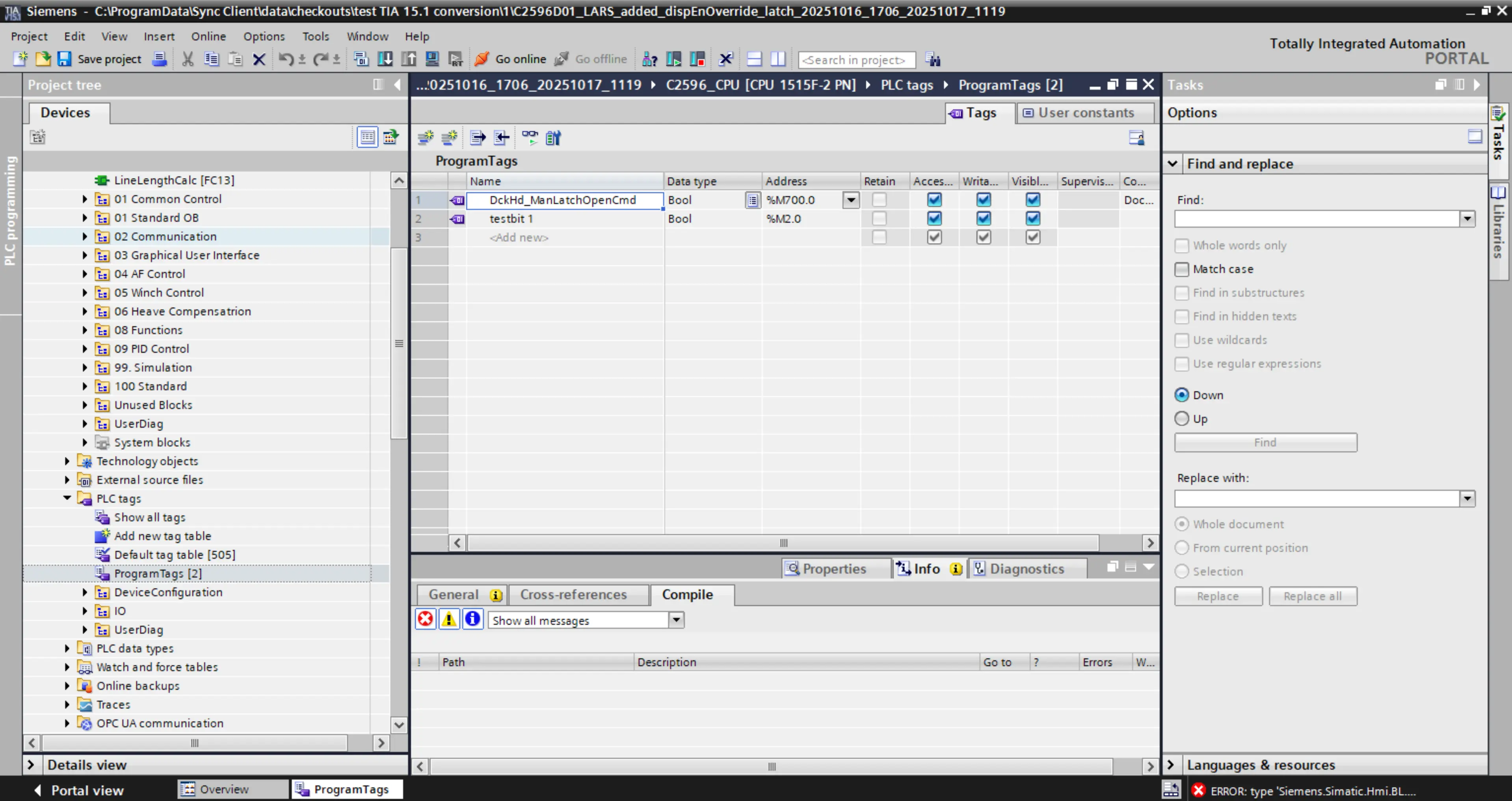
Choose Open project to open the local checkout using the engineering application registered for that project type. The corresponding IDE must be installed on the computer.
Check in or discard changes
After editing, return to Sync Client and choose Checkin. Enter a message describing the changes and confirm.
Before checking in, close the external engineering IDE. An open IDE can leave project lock files in the checkout and prevent Sync Client from preparing the check-in.
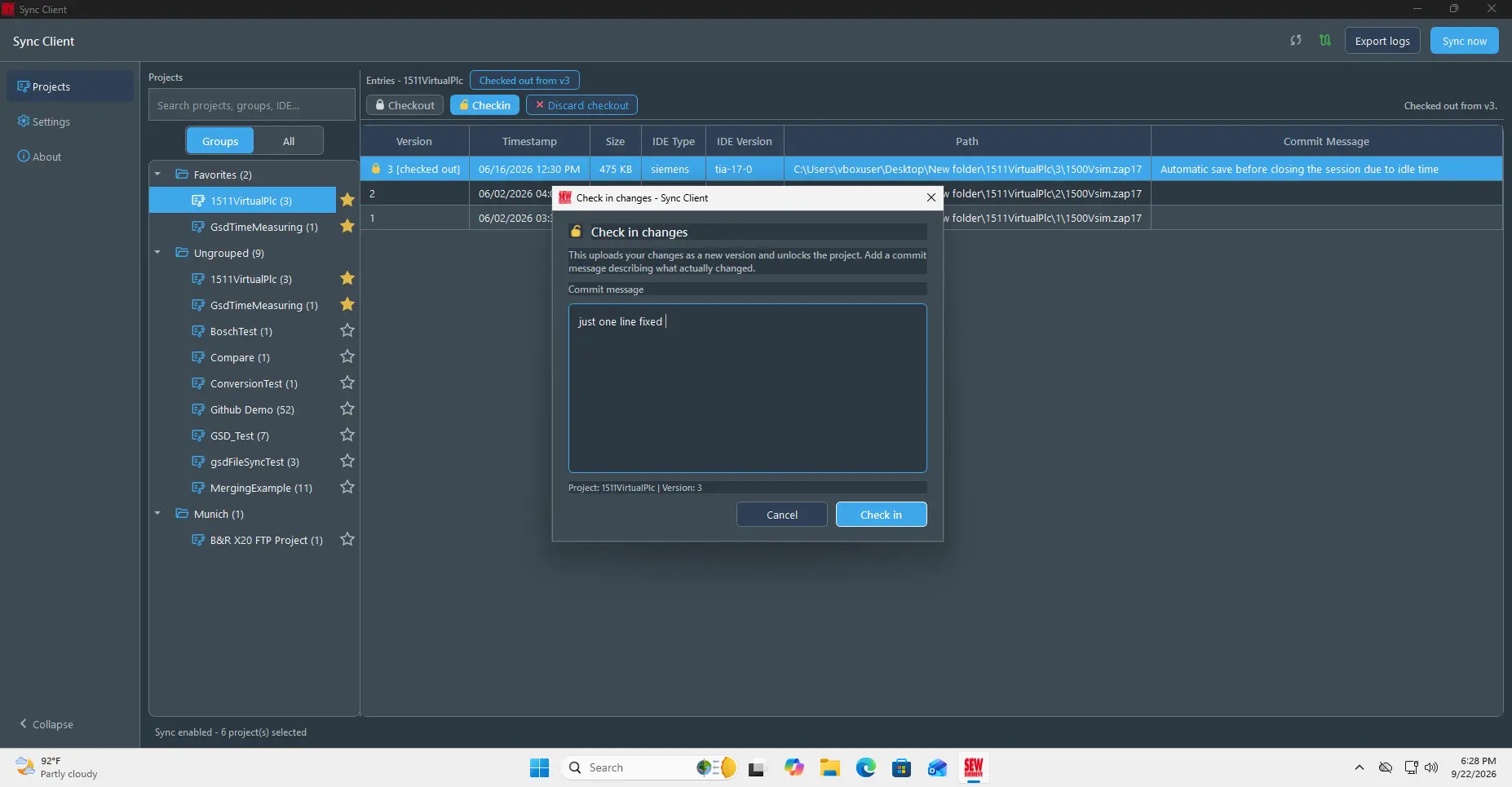
Sync Client uploads the changed project, adds the new version to the version history, and releases the project lock. To abandon the local changes instead, choose Discard checkout and confirm.
Favourite projects
Use the star beside a project to add or remove it from Favorites. Filled stars identify favourite projects and provide quicker access from the project list.
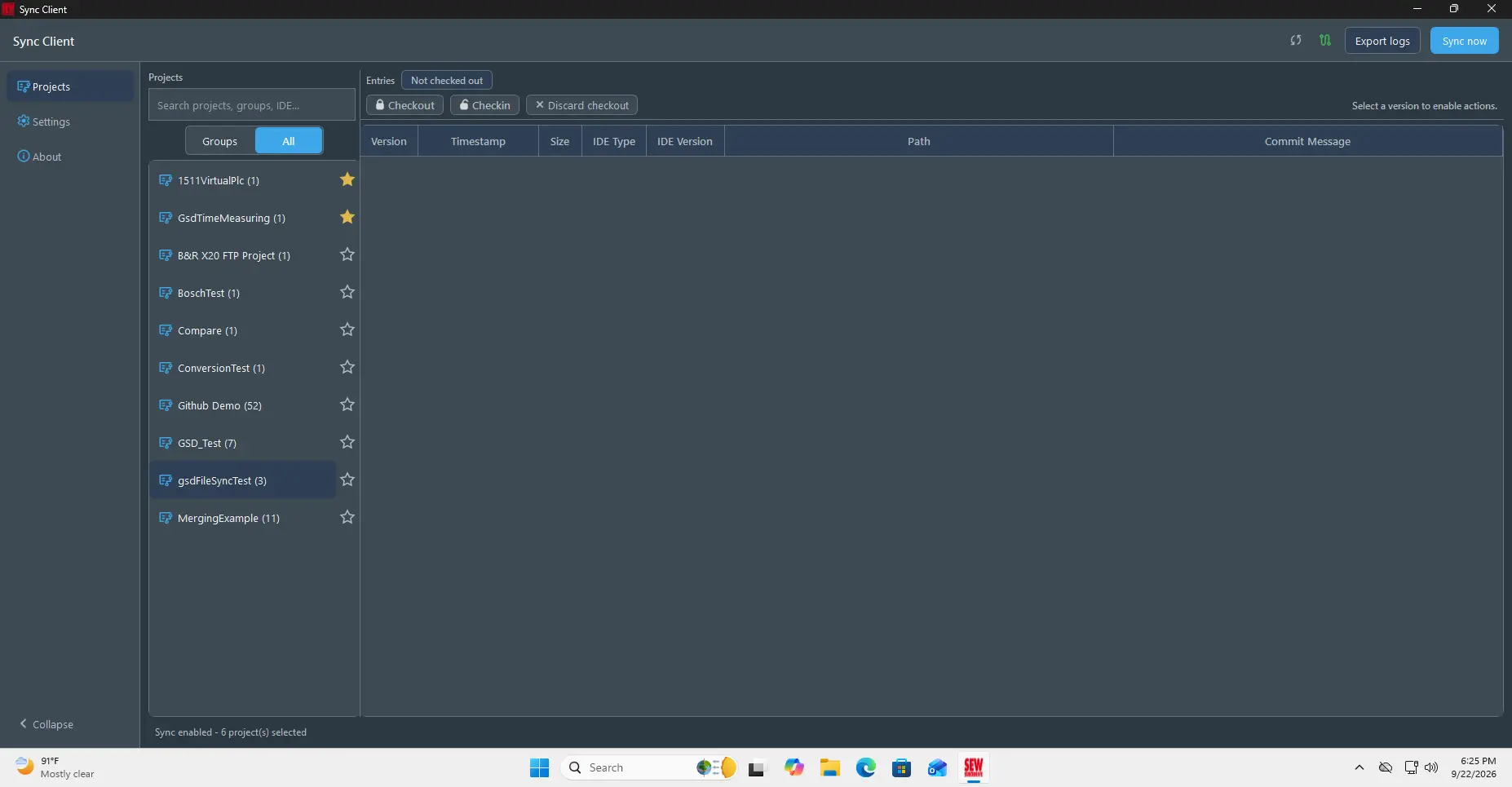
Favourite markers also remain visible in the grouped project tree.
Help and diagnostics
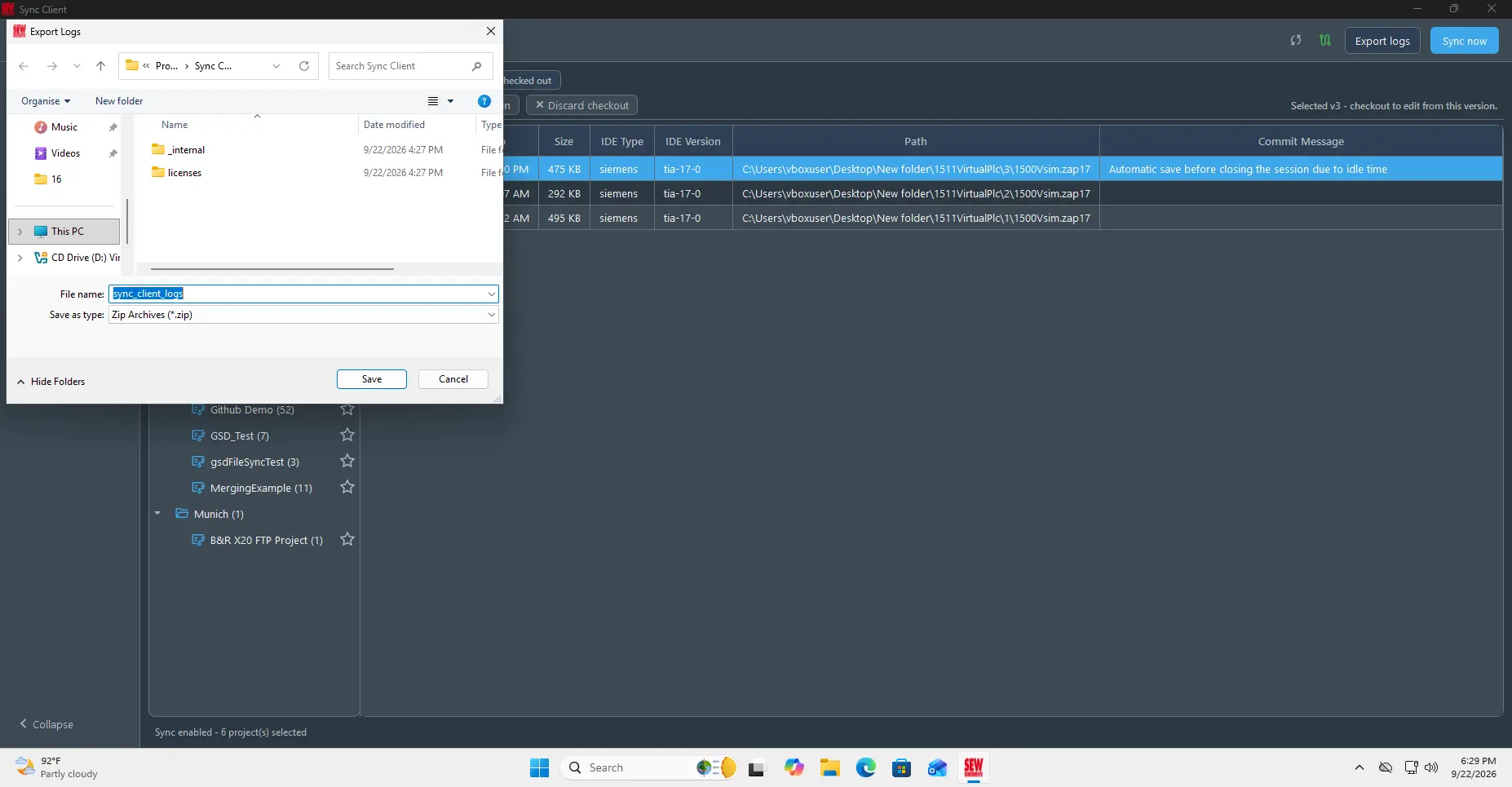
Use Export logs to create a diagnostic package for support. The export includes application and service logs but does not expose saved passwords.
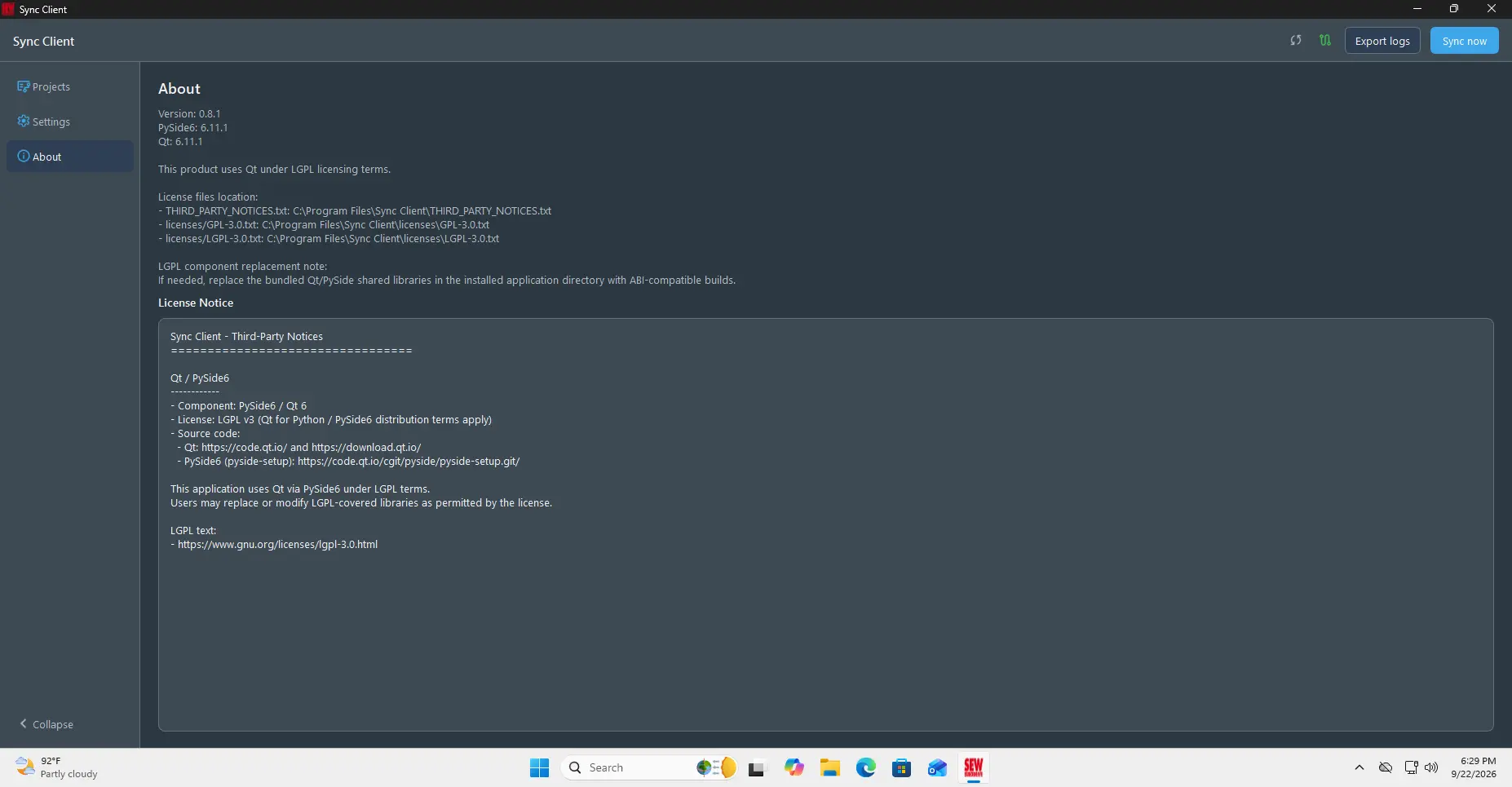
Open About to view the installed application version, licence information, and third-party notices.
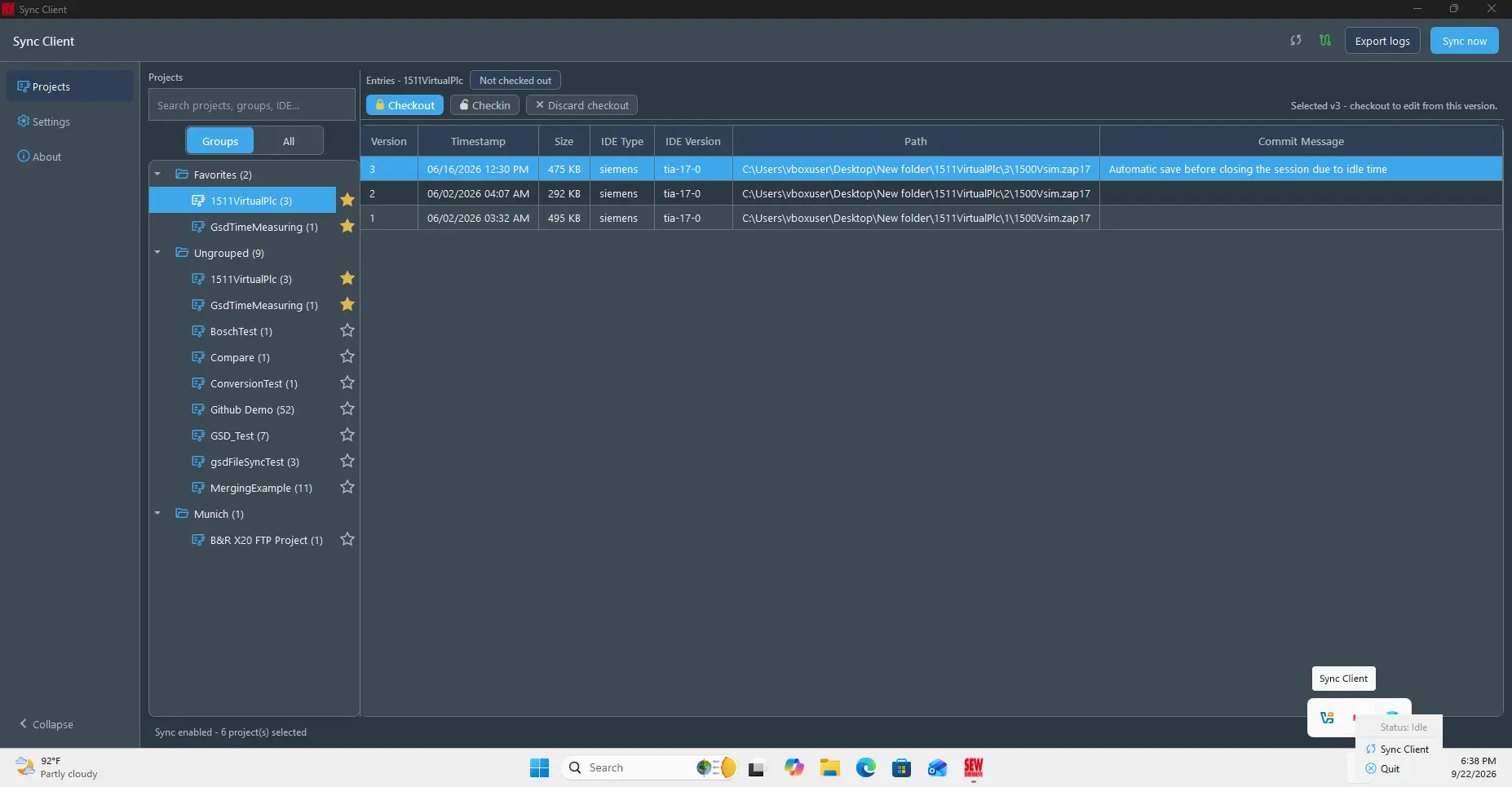
Sync Client can continue running in the system tray. Use the tray menu to open the application or quit.
Command-line interface
The installation also provides sync-cli, which communicates with the same background service as the desktop application.
Configure password credentials
For an account that does not require MFA, the CLI can save the username, password, API URL, local storage path, and synchronization interval:
sync-cli --username "user@example.com" --password "<password>" --api-url "https://<sew-api-url>" --local-path "<project-folder>" --sync-frequency 30
This command saves the configuration; it is not an interactive login and does not verify the credentials immediately. Authentication occurs when synchronization starts. Run sync-cli --sync-now, followed by sync-cli --status, to start synchronization and inspect the result.
MFA and SSO login are not supported through sync-cli. If the account requires MFA or SSO, complete login in the desktop application. Passing --password can also leave the password in terminal history and temporarily expose it in the process command line, so use the desktop login when possible.
Inspect and control Sync Client
Check the service and synchronization state:
sync-cli --status
Display the current non-secret settings:
sync-cli --show-settings
Request an immediate synchronization:
sync-cli --sync-now
List active project checkouts:
sync-cli --show-checkouts
Run sync-cli --help to see all supported project and output options. Add --json when consuming command output from a script.
Uninstall Sync Client
Windows
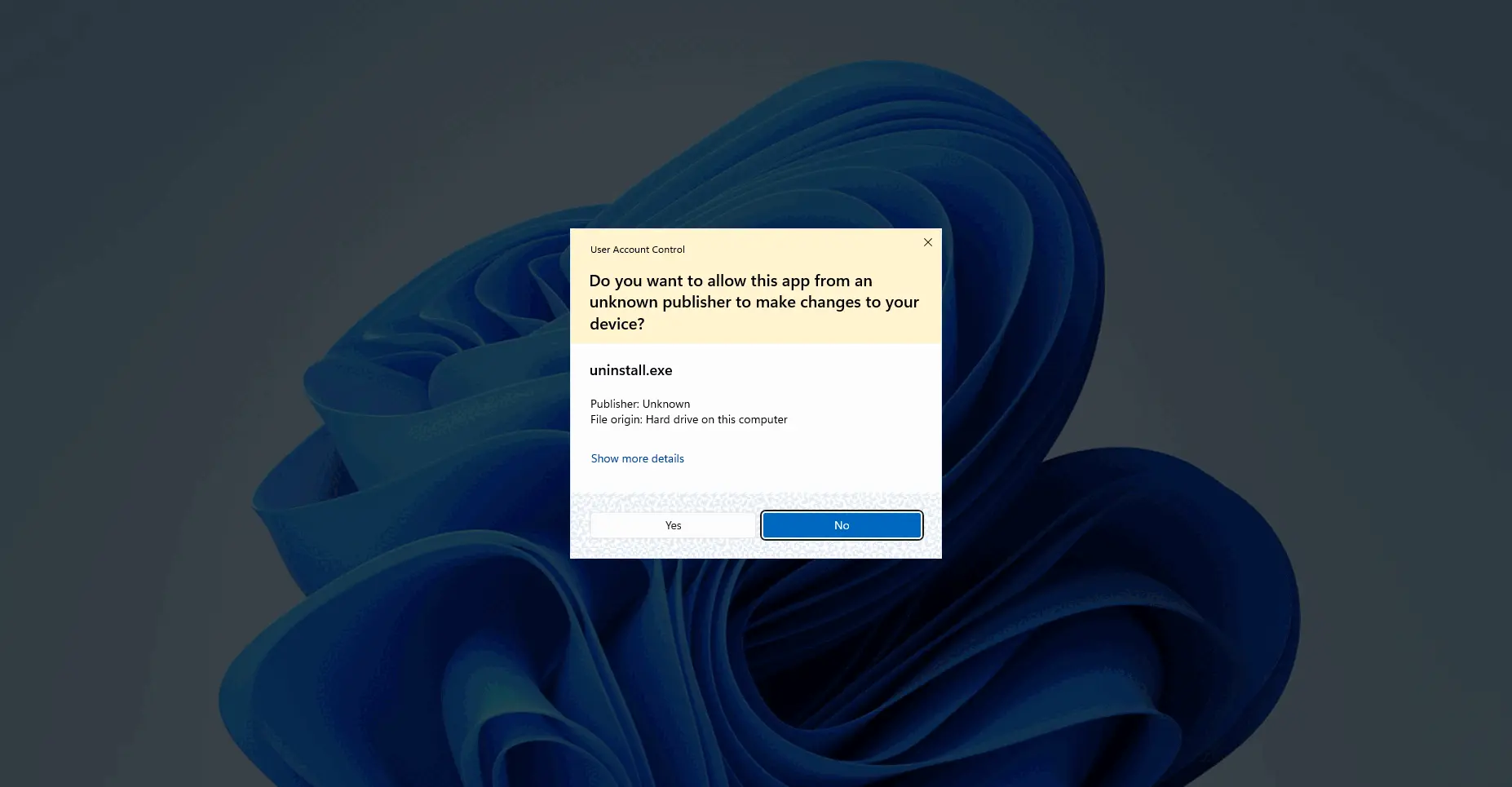
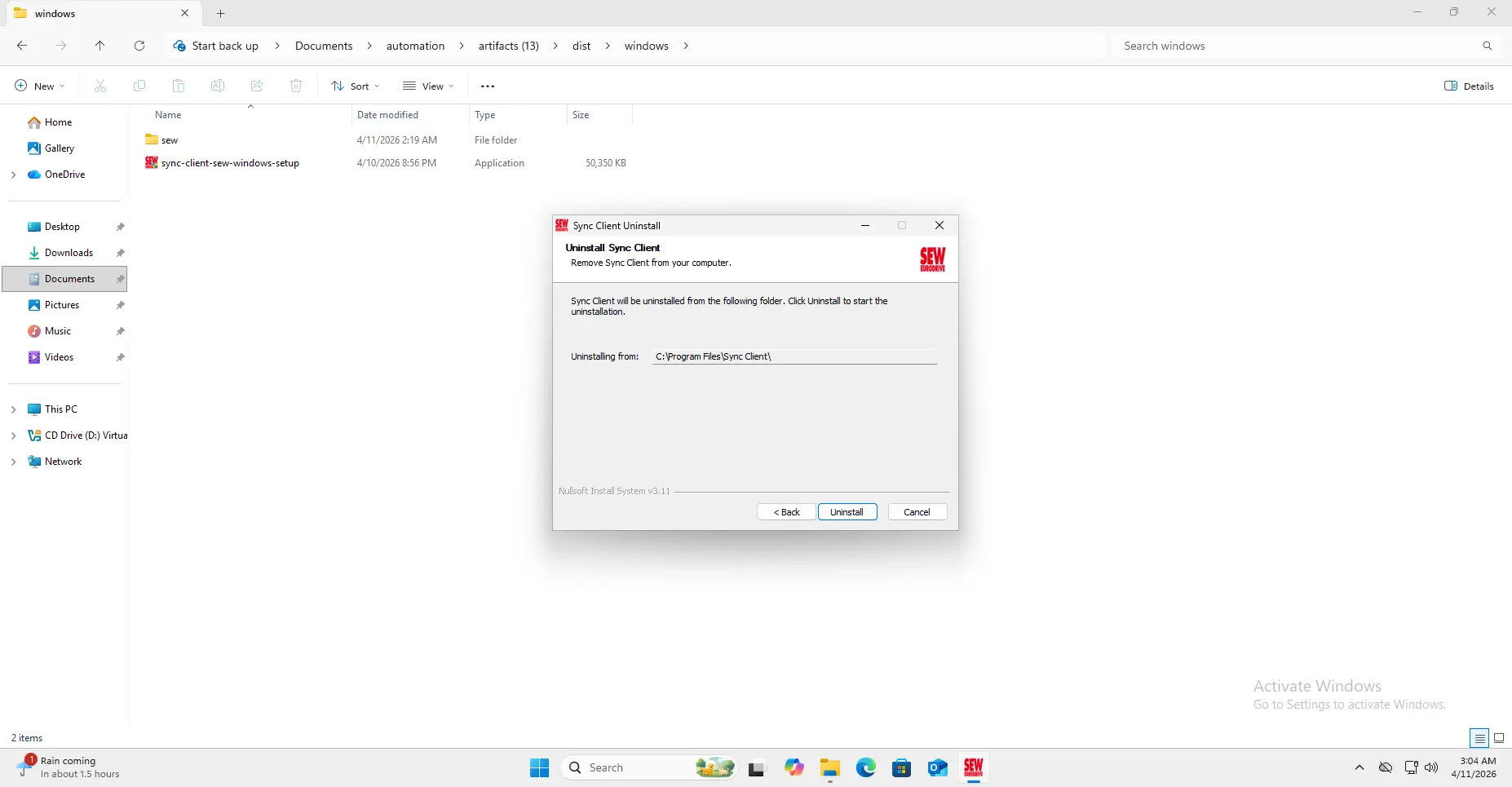
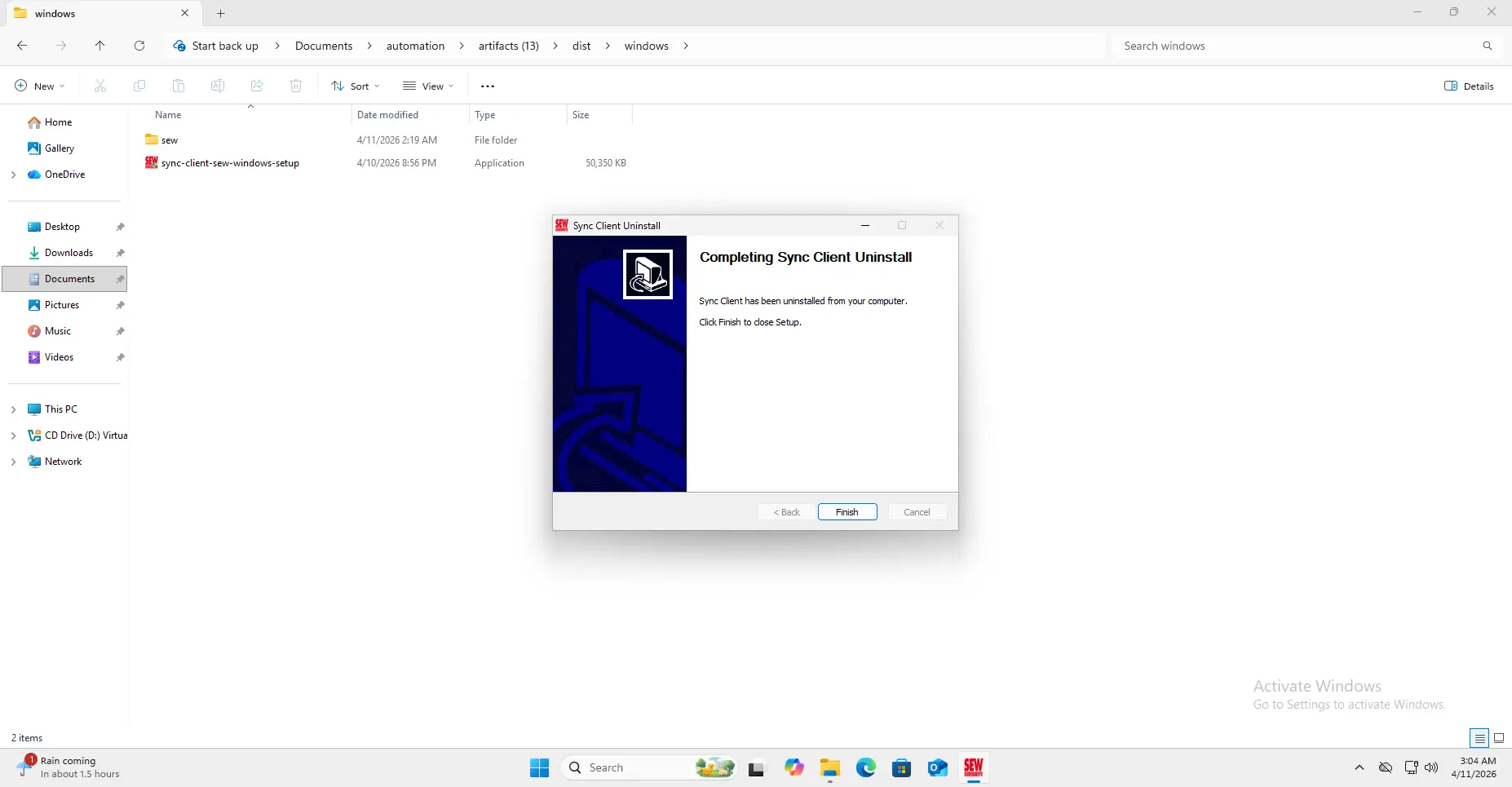
First close Sync Client from the system tray. Then open Windows Apps or Programs, select Sync Client, and complete the uninstall prompts.
Linux
-
Close Sync Client from the system tray menu before running the uninstaller.
-
Open a terminal in the extracted
sync-client-linuxdirectory. -
Run the uninstaller with administrator privileges:
sudo ./uninstall.sh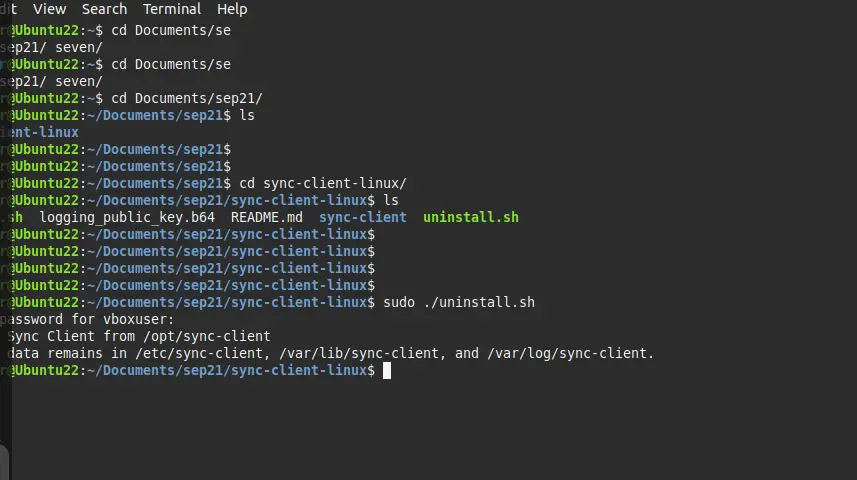
The uninstaller removes the application bundle from /opt/sync-client. Configuration, synchronized data, and logs remain in /etc/sync-client, /var/lib/sync-client, and /var/log/sync-client so that they can be reused or inspected later.