Manage Company
Manage Company Overview
The Manage Company section gives administrators a central place to configure and maintain core organizational settings across the tenant. Here, you can manage your company’s profile information and enforce tenant-wide security policies, including authentication requirements such as Multi-Factor Authentication (MFA).
This section also includes tenant off-boarding controls. The tenant owner can permanently delete a tenant and all associated data. A 7-day period in which the deletion can still be canceled ensures a fully controlled off-boarding process.
About Company
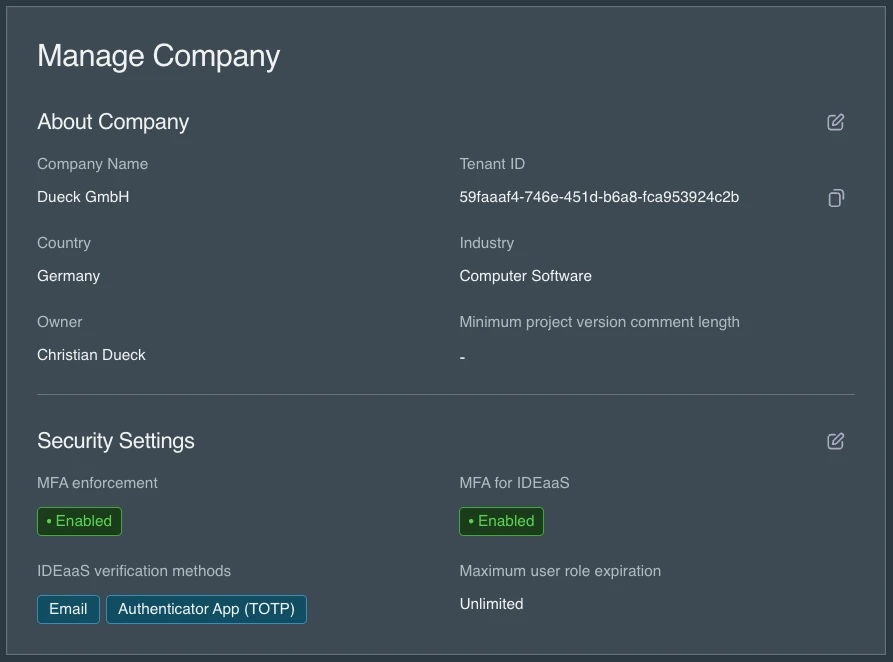
The About Company section allows administrators to define key organizational details, including the company name, country and industry. This information helps identify and categorize the tenant across the SEW platform. The section also displays important metadata such as the current tenant owner and the unique tenant ID, providing clear visibility into who holds administrative ownership and how the tenant is uniquely referenced within SEW.
Security Settings
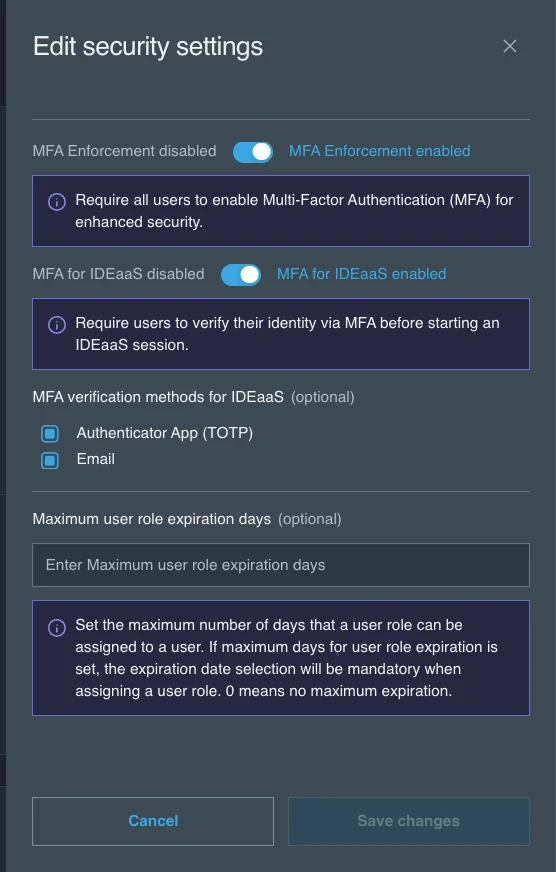
Select the edit icon of the Security Settings section to open the Edit security settings drawer, change the settings and select Save changes. You can also open the same settings from the Security Hub by selecting Security Settings. Viewing and editing the security settings requires a role that allows updating company properties.
-
MFA Enforcement: When enabled, this setting requires all users in the account to use Multi-Factor Authentication (MFA). Users without MFA will be automatically redirected to the MFA setup page upon login and must enable MFA before they can access the platform. We recommend keeping MFA Enforcement enabled at all times.
-
MFA for IDEaaS: When enabled, users are required to verify their identity via MFA before starting an IDEaaS session. This adds an extra layer of security specifically for Browser Based Engineering access, independent of the platform-wide MFA enforcement. Administrators can select which verification methods are available:
- Authenticator App (TOTP) — users authenticate using a time-based one-time password from an authenticator app (e.g., Google Authenticator, Authy). Users must have TOTP configured in their account before this method can be used.
- Email — a one-time verification code is sent to the user's registered email address.
At least one verification method must be selected when MFA for IDEaaS is enabled.
-
Maximum User Role Expiration Days: Sets the maximum duration (in days) that a user role assignment can remain active. When set to 0, user roles have no maximum expiration limit and can be assigned without expiration date (remain active indefinitely); the page then shows Unlimited. When a maximum is set, an expiration date is required whenever a user role is assigned.
Turning off MFA Enforcement
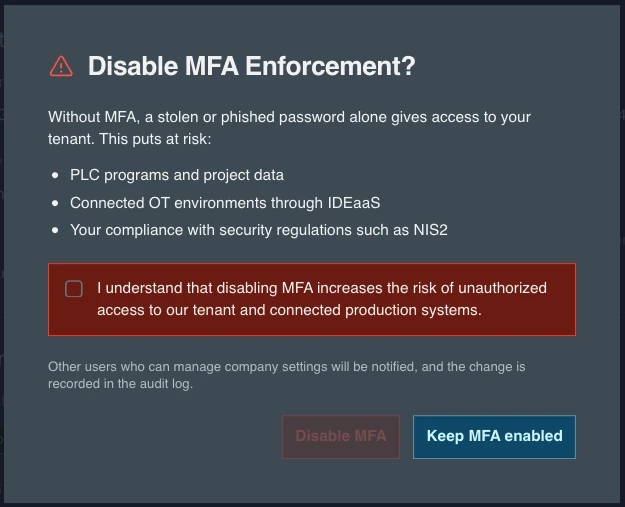
Without MFA, a stolen or phished password alone gives access to your tenant, including PLC programs, project data and connected OT environments. See Security Hardening.
Because turning off MFA Enforcement lowers the protection of the whole tenant, three safeguards apply:
- Confirmation: The Disable MFA Enforcement? dialog explains what is at risk. The Disable MFA button stays disabled until you tick the acknowledgement box. Select Keep MFA enabled to cancel.
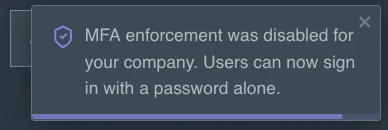
- Notification: Other users who can manage company settings are notified in the platform and by email. The email links directly to Manage Company so the setting can be turned back on.
- Audit log: The change is recorded in the Audit Logs.
Security changes in the audit log
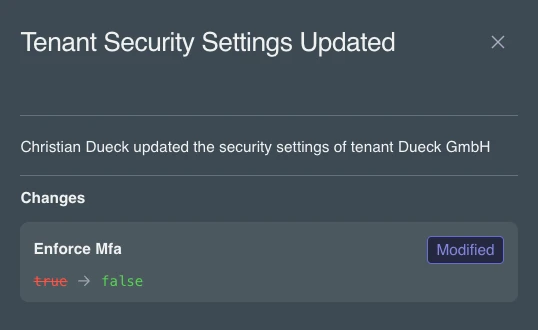
Every time the security settings are saved, an entry with the type Tenant Security Settings Updated and the category Security is added to the Audit Logs. To list these entries, filter the Audit Logs by Category. Select the details icon of an entry to see who made the change and the old and new value of each changed setting.

Off-boarding
The Off-Boarding section allows the tenant owner to permanently delete the tenant and all associated data from the SEW platform. Only the tenant owner can start off-boarding.
After you start off-boarding, you have 7 days to cancel the deletion. If you do not cancel, the deletion begins after these 7 days, and all account information, projects, devices, configurations and stored assets are deleted within 30 days with no possibility of recovery. Because this cannot be undone once the deletion has started, make sure this is what you want before you begin.
Data retention timelines and deletion policies follow the guidelines outlined in SEW’s Terms of Service, available on our website.